Recovering simple PDF text
Use the PDF converter to create an editable DOCX draft from a digital PDF, then rebuild styles and tables manually. Run OCR first for an image-only scan.
Drop files here
This PDF converter chooses a real workflow from the selected format: PDF text becomes DOCX locally, images become PDF pages locally, and supported Office files use an approved Gotenberg service.
The PDF converter is a format router rather than one universal transformation engine. When the input is PDF, TiPDF extracts embedded text with PDF.js and creates a simple page-grouped DOCX. When the input is a supported image, browser code decodes it and places it on an A4 PDF page. When the input is DOC, DOCX, XLS, XLSX, PPT or PPTX, the file is uploaded after approval to the configured Gotenberg/LibreOffice service and rendered as PDF.
Those paths have different fidelity and privacy properties. PDF-to-DOCX is editable text extraction without visual layout reconstruction or OCR. Image conversion preserves the visible picture but flattens transparency on white, uses JPEG for embedding and does not create searchable text. Office rendering can preserve printable structure more effectively, yet fonts, page breaks and application-specific features can differ from the source application.
A responsible PDF converter must state which path ran. The result summary and extension identify the output, while server conversions also record that an upload and Gotenberg service were used. TiPDF does not claim that every format converts in both directions or that one setting preserves every feature.
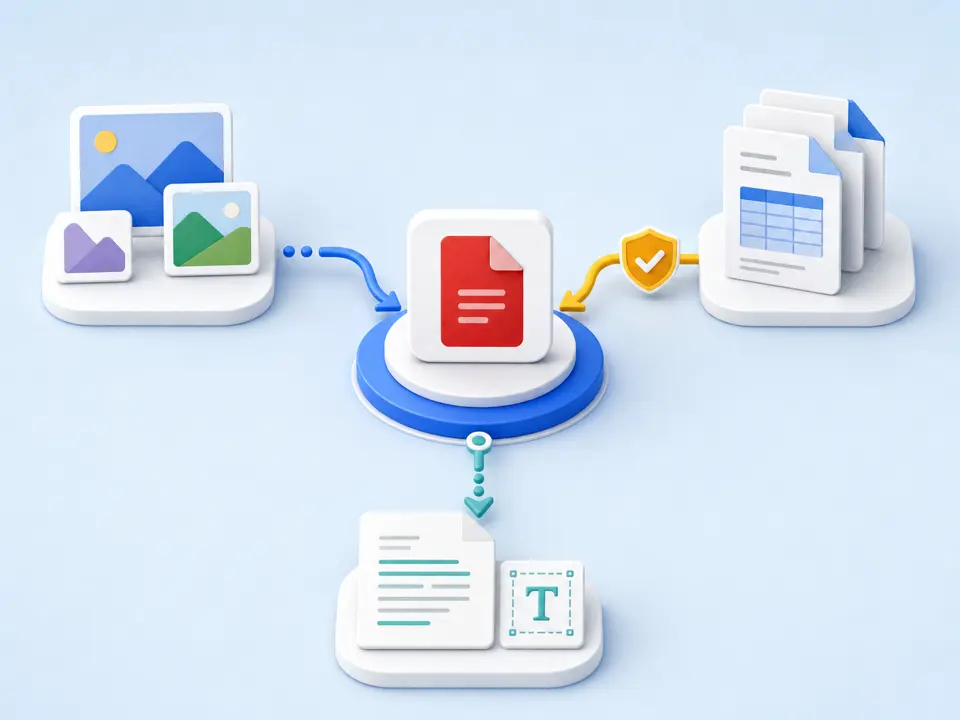
The PDF converter accepts one file. PDF produces DOCX. JPG, PNG, BMP, GIF, HEIC, TIFF, and WebP produce PDF. DOC, DOCX, XLS, XLSX, PPT, and PPTX produce PDF through the configured service. URLs, ZIP, RTF, OpenDocument files, and ebooks use separate workflows.
Because the PDF converter includes a server branch, the workspace applies the 50 MiB server-tier limit and displays approval before processing. Office files upload; PDF and image branches execute locally after the shared gate. This distinction follows the selected handler, not a blanket privacy claim.
To use this file to PDF converter with Office input, Gotenberg needs an HTTP or HTTPS address. A timeout, unsupported source, or invalid response produces an error, and server output must start with a PDF signature. Local branches use their page or pixel limits.
Use PDF only when page-grouped editable text in DOCX is useful. Choose an image or Office source when the goal is PDF. For other directions, open the dedicated tool page.
TiPDF checks extension, content signature, non-empty size, and the 50 MiB route limit. A renamed or malformed file is rejected rather than sent to the wrong handler.
The mixed PDF converter displays remote approval because Office formats can upload. Approve only when the file may be processed under the deployment's service policy.
PDF text and images are processed in browser code; Office documents are posted to the configured Gotenberg service. Progress and errors reflect the chosen path.
Check extension, page count, reading order, image quality, fonts, tables, and page breaks as applicable. Keep the source because every result has path-specific limitations.
Use the PDF converter to create an editable DOCX draft from a digital PDF, then rebuild styles and tables manually. Run OCR first for an image-only scan.
Convert to PDF from a supported image for a consistent A4 delivery page. Use a dedicated image converter for multiple files or format-specific guidance.
The PDF converter can render a reviewed Word, Excel, or PowerPoint file through the approved service. Compare fonts, orientation, formulas displayed, and pagination.
A supported source can become a practical PDF maker input, but successful conversion is not proof of semantic accuracy. Open the source and result side by side.
PDF-to-DOCX retains extracted strings but omits images, exact coordinates, fonts and table semantics. Image-to-PDF keeps the visual image within portrait A4, scales it down when needed and embeds a quality-0.9 JPEG, so transparency and some fine detail can change. Office-to-PDF quality depends on LibreOffice support and installed fonts.
No PDF converter can recover source features that are absent or inaccessible. A scanned PDF has no embedded words until OCR; a flattened spreadsheet PDF has no formulas; an Office document referencing an unavailable font may reflow. Validate the output for its intended use rather than relying on the extension alone.
The PDF and image handlers run in browser memory. The Office handler uploads the approved file to the TiPDF server and configured private Gotenberg service. The shared workspace asks for remote-processing approval because it supports that branch, even when a selected PDF or image later uses local code.
The project does not prove a universal server deletion schedule or storage policy, so no automatic-deletion claim is made. Downloaded results and sources remain on your device. Do not approve an Office upload when policy forbids sending that document to the configured environment.
Embedded text is extracted locally into a simple DOCX. The original visual layout and images are not reconstructed, and OCR is not automatic.
The image handler runs locally, but the mixed workspace still presents the shared remote-approval gate because Office formats can upload.
Supported images and DOC, DOCX, XLS, XLSX, PPT or PPTX. Office files require configured Gotenberg; images use the local A4 workflow.
Not guaranteed. LibreOffice rendering and available fonts can change page breaks, objects and layout.
The free PDF converter workflow has no checkout in this page, but deployment access and the configured remote service can vary. Review the current product terms before uploading.
Send one approved Word file to the configured office renderer and verify the returned PDF.
Extract embedded PDF text into a simple editable DOCX organized by source page.
Combine JPG or JPEG images locally into one ordered A4 PDF with one image per page.
Render all or selected PDF pages locally as separate JPG images at one of three quality levels.
PDF converter copy was checked against the format registry, executor branches, upload gate and Gotenberg service on July 18, 2026. Tests validate PDF, image and Office artifacts where dependencies are available; universal fidelity is not claimed.