Website previews
Use PDF to JPG for raster page previews. Resize and optimize the files for the actual layout instead of serving unnecessarily large high-scale output.
Drop files here
Convert PDF to JPG when individual pages need to work as ordinary image files. TiPDF renders all pages or a validated selection locally, applies one of three practical quality levels and creates a numbered JPEG artifact for every chosen page.
The PDF to JPG process opens one genuine PDF with PDF.js, parses requested pages, and paints each page onto a browser canvas. Text, vectors, photographs, and visible annotations become pixels. TiPDF encodes the canvas as JPEG and names it with the safe source filename plus page number. A three-page selection creates three images, not one tall contact sheet.
Raster rendering differs from extracting embedded pictures. It captures the complete visible page, including margins, backgrounds, and combined elements. It does not return original photo objects or preserve selectable text, vector paths, links, form controls, layers, or navigation. Use it when the destination expects a simple image, not editable source content.
The PDF to JPG converter performs no OCR and makes no content decisions. It will not detect a chart, crop a photograph, remove a header, or infer which pages matter. The page expression controls output. Use PDF to Word for editable embedded text, or PDF to PNG for lossless page-image encoding.
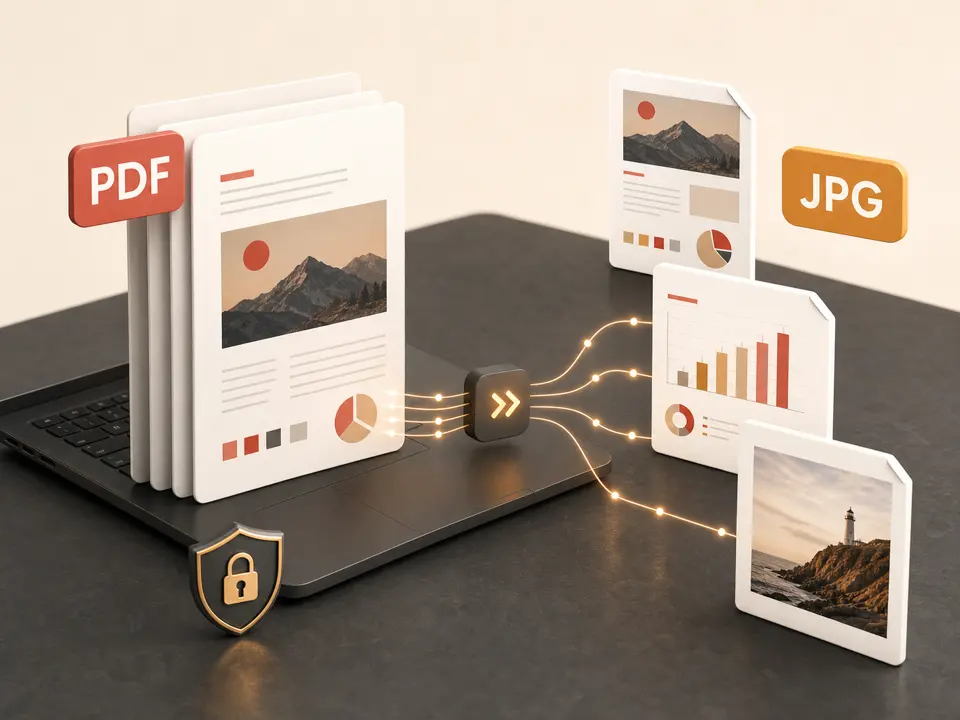
PDF to JPG accepts one .pdf up to 100 MiB and 500 readable pages. The extension must match the PDF signature. Unlock encrypted documents with the correct password and authority; renamed, damaged, or unreadable files are rejected. Request all pages, one page, ranges, combinations, odd, or even pages. Numbering is one-based.
PDF to JPG standard uses scale 1 and JPEG quality 0.52; balanced uses 1.45 and 0.76; high uses 2 and 0.9. Scale multiplies viewport dimensions, not a fixed DPI, because page sizes vary. Higher settings produce more pixels and often larger files, while lower settings can soften text and diagrams.
The job is limited to 250 million rendered pixels. A long document at high scale can hit the ceiling even when the PDF is small. Select fewer pages or lower quality when necessary. Each .jpg includes its source page number.
Open the source in a reader and note its viewer page numbers. Printed page labels can differ from the file index.
Choose or drag the document. The browser checks its extension, signature, byte limit, password state, and readable page count.
Use all, one page, a range, a combination, odd, or even. Review broad selections before rendering hundreds of images.
Start balanced for sharing, use high when fine lines need more pixels, or standard when compact output matters. These names describe settings, not measured visual scores.
TiPDF renders each selected page locally, encodes a separate JPEG, and reports progress. Inspect small text, line edges, photographs, page numbers, and filename continuity.
Use PDF to JPG for raster page previews. Resize and optimize the files for the actual layout instead of serving unnecessarily large high-scale output.
A PDF to JPG page can sit on a slide when its individual elements do not need editing. Links and selectable text become pixels.
Save PDF as JPG only when the destination rejects PDF. Confirm accepted dimensions, JPEG quality, and file-count limits before processing a large document.
Export selected PDF pages to images for an image-oriented markup workflow. Keep the source when signatures, tags, forms, or original vectors matter.
PDF to JPG uses lossy JPEG encoding. Photographs can remain efficient, while tiny type, diagrams, and repeated saving may reveal blur or ringing. The high setting increases scale and encoder quality but cannot restore absent detail. Standard may suit thumbnails but needs review. PNG is better when sharp line edges matter more than size.
The browser renderer decides how supported PDF color, transparency, fonts, and annotations appear. PDF to JPG results may differ from a print engine with unusual color spaces, overprint, or unsupported features. Page images also discard semantic text, tags, and interaction. Compare critical results at the intended viewing size.
The PDF to JPG rendering job runs in browser memory on the current device. Document bytes and generated pages are not sent to the server conversion, AI, storage or sharing routes, and the tool does not request upload approval. The page may still load ordinary application resources from the network; the local statement applies to the selected PDF.
Closing or refreshing ends the in-memory job, but downloaded JPG files remain in the device's chosen location. TiPDF cannot delete them or stop a recipient from copying them. Separate images can be easier to misfile or send to the wrong person than one document, so review filenames and destination access carefully.
Yes. Every selected page becomes a separate numbered JPG artifact.
Yes. Use pages, ranges, combinations, odd, or even, and verify them against the viewer count.
It uses scale 2 and JPEG quality 0.9, but that does not guarantee a fixed DPI or print result for every page size.
Balanced is a practical starting point. Standard uses scale 1 and quality 0.52. Inspect the actual output.
No. The entire rendered page becomes pixels. Use a text-extraction route when editability matters.
Yes. The local workflow has no account or checkout requirement. Page and rendered-pixel limits still apply.
Combine JPG or JPEG images locally into one ordered A4 PDF with one image per page.
Render all or selected PDF pages locally as separate lossless PNG images at three resolution scales.
Use Crop PDF to inset all or selected page boxes by one uniform point margin locally.
Reduce an image-heavy PDF's byte size with explicit quality tradeoffs and a measured fallback.
PDF to JPG capability copy was verified on July 18, 2026 against the pdf-to-jpg registry, PDF.js page renderer, page-range parser, three quality settings and rendered-pixel guard. Claims cover local per-page JPEG artifacts without promising extraction, OCR or fixed DPI.