Receipts already photographed
Use Scan to PDF for expense images in one reference packet. Verify merchant details and totals, and retain original color photos when color is evidence.
Drop files here
Scan to PDF after you already have document photos or image files. This PDF scanner applies a consistent grayscale and contrast treatment locally, places each image on an A4 page and downloads one multi-page PDF.
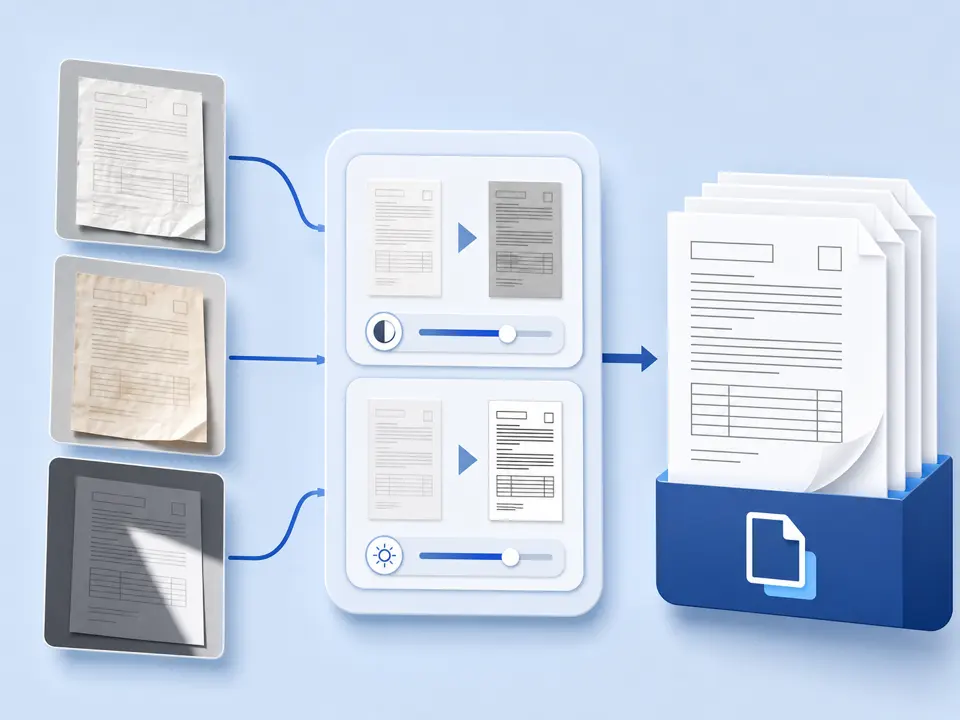
When you scan to PDF here, TiPDF begins with images already on your device. It decodes each file, converts the canvas to grayscale, raises contrast by a fixed 1.12 factor, and encodes JPEG at quality 0.9. Each image is centered on an A4 PDF page with a 24-point margin. Some TIFF or GIF files can create multiple pages.
Scan to PDF here resembles the finishing stage of a document scanner but does not control a camera. It cannot photograph a receipt, detect edges, remove a desk background, correct perspective, straighten a skewed sheet, or choose enhancement settings. Crop and rotate photos first when needed. This is not a full mobile scanning application.
Scan to PDF output is image-based. The PDF scanner does not run OCR, so photographed words do not become searchable or selectable automatically. Run OCR PDF afterward when searchable text is needed and verify recognition. OCR can misread faint characters, handwriting, unusual fonts, and tables.
Scan to PDF accepts JPG, PNG, BMP, GIF, HEIC, TIFF, and WebP files. Select 1–100 inputs, each up to 100 MiB. One decoded image may contain at most 80 million pixels, and a job at most 250 million. A compressed source can expand dramatically in browser memory.
The Scan to PDF result is one .pdf. Every image or frame becomes an A4 portrait page of about 595 by 842 PDF points. Images scale down to fit but are not enlarged. Landscape content remains horizontal within the portrait sheet, so white space can appear. There are no paper-size, margin, quality, or orientation controls.
Transparency is flattened on white before lossy JPEG encoding. The grayscale filter removes color. Animated formats or multi-frame TIFFs may yield more pages than selected filenames. Confirm the reported page count.
Photograph or export each sheet first. Correct severe skew, perspective, and unwanted backgrounds elsewhere because this tool will not detect page boundaries.
Choose up to 100 supported files. The browser validates extension, signature, byte size, and decoded pixels. File order determines page order.
TiPDF decodes each image, applies grayscale and fixed contrast, and creates a high-quality JPEG representation. Progress identifies the file being decoded.
Each result is contained on an A4 page with preserved aspect ratio. No camera, server converter, storage upload, or AI service participates.
Examine small print, shadows, photographs, orientation, and page order. Compare page count with the inputs and keep original photos until acceptance.
Use Scan to PDF for expense images in one reference packet. Verify merchant details and totals, and retain original color photos when color is evidence.
Scan to PDF can turn prepared classroom images into one document. Handwriting remains image content unless OCR recognizes it.
Use Scan to PDF to normalize a mixed batch of JPG or TIFF exports. Multi-frame sources can expand into several pages, so inspect sequence boundaries.
A phone scan to PDF workflow starts in the phone camera app, then uses saved images here. Confirm that the receiver permits image-based documents; this output is not a certified copy.
Scan to PDF applies fixed grayscale and contrast, which can separate dark marks from a pale background but cannot recover absent detail. Motion blur, clipped highlights, shadows, and low resolution remain. JPEG quality 0.9 is lossy, and colored annotations or security marks may change or disappear.
Every image is contained within portrait A4 without automatic crop or rotation. The PDF is not searchable by itself. To make a searchable scanned PDF, run OCR and compare recognized text with the visible page, especially for names, account numbers, and tables.
The PDF scanner is registered as a local-heavy browser tool. Image decoding, enhancement, JPEG encoding and PDF assembly run in memory on the current device. The document workflow does not call conversion, storage, sharing or AI endpoints and does not request upload approval. The website may still load ordinary assets or analytics, so this claim applies to selected document bytes rather than the entire page being offline.
Reloading clears the active job, but the source images and downloaded PDF remain on your device. TiPDF cannot delete local files, operating-system backups or copies you later share. Identification and financial documents should be handled on an appropriate device and reviewed before distribution.
No. It accepts image files that already exist. Use your camera application first, then choose the saved images.
Yes. The local image workflow has no account or checkout requirement. File, pixel, and browser-memory limits still apply.
No. There is no edge detection, background removal, or perspective correction. Prepare images before conversion.
Not initially. The scanner builds image pages. Use OCR PDF separately and verify recognition.
GIF and TIFF sources can contain multiple frames. Each becomes a page and counts toward the pixel limit.
Not with the PDF scanner handler, which applies grayscale. Use Image to PDF or a dedicated JPG/PNG route when color matters.
Recognize English or Simplified Chinese locally and download searchable PDF plus plain text.
Combine JPG or JPEG images locally into one ordered A4 PDF with one image per page.
Decode every directory in selected TIFF files locally and place each frame on its own ordered A4 PDF page.
Reduce an image-heavy PDF's byte size with explicit quality tradeoffs and a measured fallback.
Scan to PDF copy was checked against the images-to-pdf registry, browser canvas handler, and limits on July 18, 2026. Tests cover image inputs and valid output; camera capture, automatic cropping, perspective correction, and OCR are excluded.