Reports with appendices
Use Merge PDF to place a main report before exhibits, source notes, and signed approvals. Clear filenames make the package easier to rebuild.
Drop files here
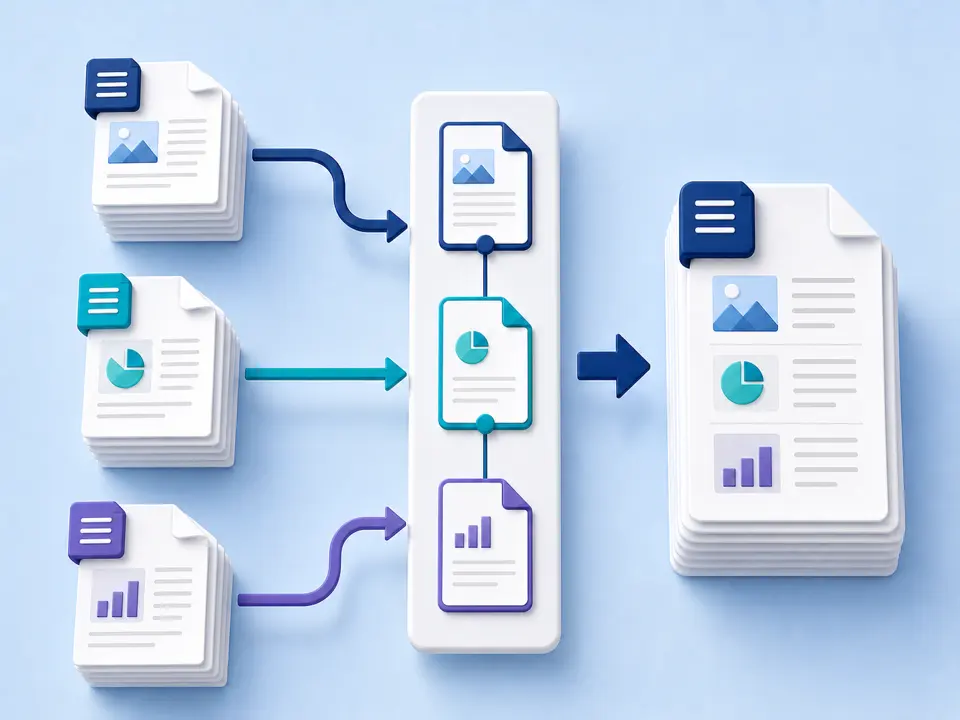
Merge PDF files when separate chapters, scans or attachments belong in one document. TiPDF copies every page locally in your selected file order, writes one new PDF and leaves each source file unchanged.
The Merge PDF handler opens every selected document, copies its pages and appends them to a new PDF in the same order as the file list. If report-a.pdf comes before appendix-b.pdf, all pages from the report appear before all pages from the appendix. The process does not interleave pages automatically, sort by dates found inside a document or infer chapter order from filenames. A deliberate source order is therefore the most important setup step.
Unlike the compression and permanent redaction tools, this PDF merger does not render pages as images. Existing page dimensions, vector artwork, embedded text and images are copied as PDF page content. That usually preserves visual fidelity better than screenshot-based assembly, although the newly written file is not byte-for-byte identical to any source. Document-level metadata, bookmarks, attachments, forms and certificate signatures need separate review because copying pages is not the same as preserving every container feature.
Use Merge PDF for whole-file concatenation. If the requirement is to rearrange every page inside one document, Organize PDF accepts an explicit complete page order. Extract PDF Pages copies a selection into one new document, while Split PDF creates separate one-page outputs. Keeping these intents separate prevents a simple combine PDF job from becoming an error-prone page-editing workflow.
Merge PDF accepts 2–100 genuine .pdf files. Each local input can be up to 100 MiB and 500 readable pages. Total work still depends on browser memory: one hundred tiny PDFs differ from image-heavy reports. On a constrained device, combine sensible groups and inspect intermediate results.
Merge PDF follows file selection order and has no post-upload drag control. Choose files deliberately or add them in the intended sequence. Distinct files with identical content will be copied twice. The output is one newly written .pdf.
Before Merge PDF can load encrypted inputs, unlock them with authorization. A malformed file, renamed non-PDF, or document beyond validation limits stops the job instead of being skipped, preventing an apparently complete package with missing pages.
Rename files with clear prefixes if necessary, then confirm each document's first and last pages. Decide the complete order before selecting anything.
Choose them from your device in the intended sequence or drag them into the workspace together. TiPDF validates extensions, signatures, sizes, and page counts locally.
Start only after the list is correct. TiPDF loads each source, copies every page, and appends it to the new document without server conversion or image rendering.
Open the result and check every source boundary. The previous file's last page should be followed by the next file's first page. Verify orientation, page sizes, and interactive elements.
Save the merged copy under a descriptive name and retain the originals. A combined deliverable should not erase version history or evidence represented by its components.
Use Merge PDF to place a main report before exhibits, source notes, and signed approvals. Clear filenames make the package easier to rebuild.
Combine PDF files from separate scan sessions into one case, application, or course packet. Rotate upside-down pages before merging.
Merge PDF records into a monthly reference bundle in a known sequence. Retain the originals when individual provenance matters.
Join PDF files such as a cover sheet, narrative, and evidence. Compare the final page count with the sum of all inputs and check the receiving system's size limit.
Merge PDF copies pages without rasterization. Selectable text normally remains page text, photographs are not intentionally recompressed, and mixed page sizes remain. A viewer may show portrait, landscape, Letter, and A4 pages in one output; the operation does not normalize them.
Review container-level behavior. Bookmarks may not form a unified outline, form field names can conflict, and links or attachments may depend on structures outside copied pages. Certificate signatures describe a specific original and should not be assumed valid in a new file. Preserve signed originals alongside a convenience copy.
Merge PDF processing occurs in browser memory on the current device. The handler reads the selected files and assembles the output locally; it does not call the server conversion, storage, sharing or AI endpoints and does not request upload approval. Normal webpage resources can still use the network, so this statement applies specifically to document bytes.
Closing or refreshing the page clears the active job. The downloaded result and all source files remain wherever your browser and operating system store them. TiPDF cannot delete local copies, backups or later shares, so use a trusted device for confidential packages.
The workspace follows selection order and has no post-upload drag list. Cancel and select again if the sequence is wrong.
It copies existing pages rather than rasterizing them, so it does not intentionally recompress page images. Document-level features still require inspection.
Yes. The local workflow has no checkout or account requirement. File limits and available device memory still apply.
Only after legitimately unlocking them. The handler cannot copy pages it cannot decrypt and does not bypass passwords.
Confirm selection order, inspect every source boundary, compare the final page count, and retain all originals.
This page concatenates whole files. Use Extract PDF Pages for one selected document or Organize PDF for a complete page order.
Merge PDF does not optimize images. Compress suitable source copies first when smaller delivery size matters.
No. Organize PDF reorders one document, while Split PDF produces separate page files.
Use Split PDF to create individual one-page files, with an optional bundled download.
Use Organize PDF for one complete sequence and a single reordered download.
Reduce an image-heavy PDF's byte size with explicit quality tradeoffs and a measured fallback.
Apply AES-256 locally with one shared user/owner password and clearly defined PDF permission flags.
Merge PDF capability copy was checked against the registry and browser handler on July 18, 2026. Tests cover multiple inputs, local page copying, and valid output; bookmark reconstruction and signature preservation are excluded.