Receipt packets
Use JPG to PDF for photographed receipts in one expense attachment. Check totals and retain originals when color or metadata may be evidence.
Drop files here
Convert JPG to PDF when photographs or scanned image exports need one consistent document container. TiPDF decodes up to 100 JPG or JPEG files locally, places each image on its own A4 page in selection order and downloads one PDF.
JPG to PDF begins with image files on the device. For each item, the browser validates its name and binary signature, decodes the bitmap, paints it on a white canvas, and embeds a JPEG representation in a new PDF. The output has one A4 portrait page per image. Seven photos produce one seven-page document, not seven downloads.
Page order follows the file array supplied by the picker. TiPDF does not read dates, receipt numbers, or content to infer a sequence. Operating systems may present image-10 before image-2, so review selection order. Zero-padded names such as image-01 reduce ambiguity in a chronological batch.
This JPG to PDF converter is narrower than Image to PDF. It accepts .jpg and the .jpeg alias. PNG, HEIC, TIFF, WebP, BMP, and GIF belong on their specific or mixed-image pages. Restricting this route to JPEG inputs keeps its validation and output promise clear.
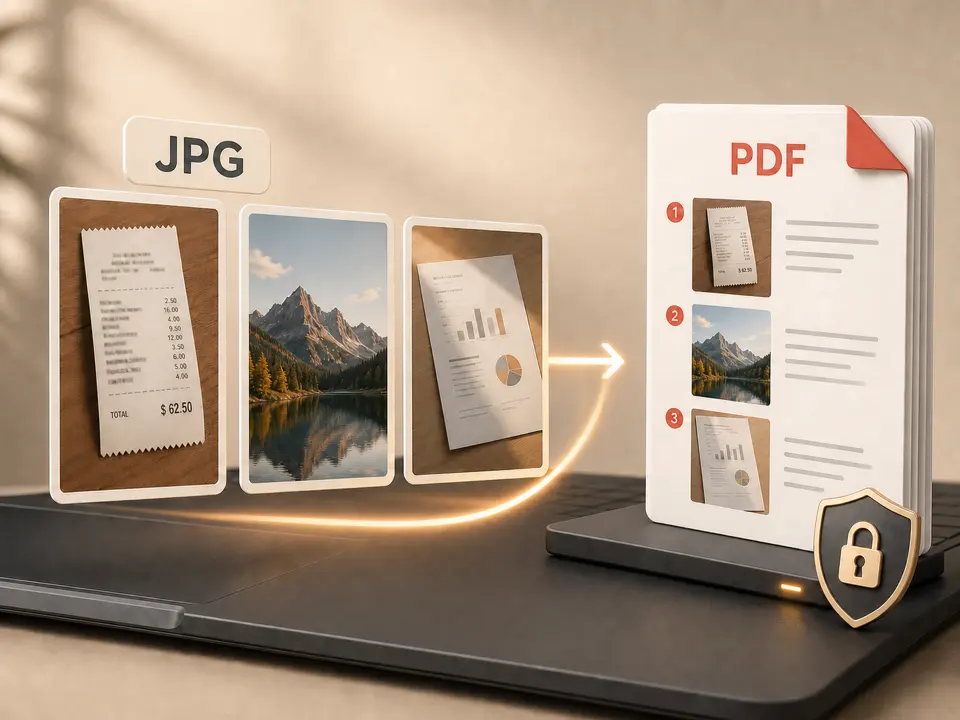
JPG to PDF accepts 1–100 JPG or JPEG files. Each can be up to 100 MiB, but one decoded image cannot exceed 80 million pixels and the full job cannot exceed 250 million. A compact camera file can expand greatly in memory, so these limits protect the browser. Empty files, renamed non-images, and conflicting signatures are rejected.
Each image is centered on a 595.28 by 841.89 point A4 portrait page with a 24-point margin. The bitmap keeps its aspect ratio, scales down to fit, and is not enlarged past decoded dimensions. A landscape photo remains horizontal content with white space; the page does not rotate. There are no paper, margin, crop, orientation, or quality controls.
The canvas has a white background and is encoded as JPEG at quality 0.9. Conversion cannot recover detail removed by camera compression and does not make photographed words selectable.
Rotate, crop, and correct perspective first. The converter fits existing pixels to a page but does not detect paper edges or repair a skewed photograph.
Use sortable filenames, then choose up to 100 images in the intended reading sequence. Confirm picker order instead of relying on capture time.
TiPDF checks extension, JPG signature, byte size, and decoded pixel dimensions. A mismatched or excessive file stops with an explicit error.
The browser creates one A4 page per image, centers the JPEG within its margins, and assembles the pages without a server upload.
Compare page count with input count and examine orientation, white space, small text, and file transitions. Keep the source images until the PDF is accepted.
Use JPG to PDF for photographed receipts in one expense attachment. Check totals and retain originals when color or metadata may be evidence.
Merge JPG to PDF only after preparing each scan. Confirm the portal's resolution, page-size, accessibility, and file-size rules; this tool does not certify compliance.
JPG to PDF can collect board photos or worksheets into an easier browsing file. Arrange sources explicitly because the converter does not infer lesson order.
Use the photo to PDF workflow for one reference image per A4 page. It has no captions, color adjustment, or multi-photo page templates.
JPG to PDF uses browser-decoded pixels and encodes each canvas at quality 0.9. This practical high setting is still lossy and can change size or add another compression generation. Large images scale down to the A4 area; smaller ones are not enlarged. Fine text, low contrast, and existing artifacts remain.
The result stores page images, not OCR text. Search, selection, copy, and screen-reader behavior are not created. Run PDF OCR separately for searchable text and verify recognition. A PDF wrapper does not make an image accessible, archival, or legally authenticated.
The JPG to PDF job runs in browser memory on the current device. Selected image bytes are not sent to the server conversion, AI, storage or sharing routes, and the handler does not request remote-upload approval. Normal site resources may still use the network; the local statement applies to the selected documents.
Refreshing or closing the page clears the active in-memory job, but source images and the downloaded PDF remain wherever the device stores them. TiPDF cannot remove those copies or prevent later forwarding. Review photographs for unintended backgrounds, location details or other sensitive content before distributing the combined file.
Yes. Select up to 100 JPG or JPEG files for one document with one image per page.
Yes. The .jpeg alias is normalized and receives the same local validation and A4 page layout.
Yes. The local workflow has no account or checkout requirement. File, pixel, and browser-memory limits still apply.
Yes. The supplied file order controls the pages. Use clear filenames and verify transitions.
Not on this route. Pages are fixed A4 portrait with 24-point margins, while each image keeps its aspect ratio.
No. The result is image-based. Run OCR separately when necessary and review its text.
No. The canvas is embedded as JPEG at quality 0.9. Existing compression cannot be reversed, and another encoding step can change image data.
Render all or selected PDF pages locally as separate JPG images at one of three quality levels.
Use Image to PDF for mixed supported formats with one local A4 page per decoded canvas.
Combine up to 100 PNG files locally into one ordered A4 PDF with white transparency flattening.
Apply a fixed document-style treatment to existing images and assemble them as one image-based PDF.
JPG to PDF capability copy was verified on July 18, 2026 against the jpg-to-pdf registry, file-signature checks, browser image decoder, pixel guards and A4 PDF assembly handler. Claims cover local ordered image placement without promising OCR, lossless output or automatic correction.