Individual certificates
A combined export may contain one certificate per page. Split PDF pages, then match every output with the correct recipient before sending anything confidential.
Drop files here
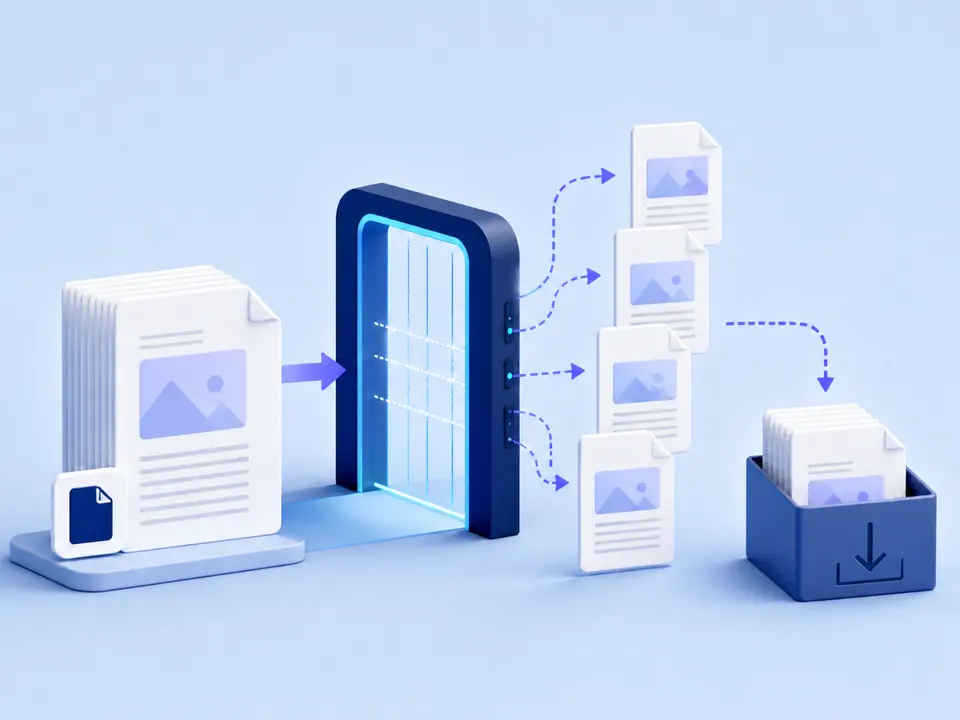
Split PDF into pages when a large document contains records that must be sent or stored separately. TiPDF selects the pages you specify, creates one single-page PDF for each and processes the source in browser memory.
The Split PDF handler reads one source document and parses a page selection. Every selected page is copied into its own new one-page PDF. Selecting pages 2-4 therefore produces three artifacts, not one three-page excerpt. That distinction matters: Extract PDF Pages creates a single document containing a selection, while Split PDF is intended for separate page files.
Split PDF selections use the visible one-based numbering people expect. You can request all pages, an individual page, a range, comma-separated combinations, or odd and even pages. The parser validates the selection against the actual page count and rejects impossible or empty requests instead of producing misleading blank files. Repeated page numbers are normalized, so the same source page is not silently emitted several times.
To split PDF content, TiPDF copies page objects rather than rendering screenshots. Existing page dimensions, text and graphics normally remain in their PDF representation. Each output is newly written, however, and document-wide structures such as bookmarks, attachments, cross-page links, form relationships and certificate signatures are not guaranteed to follow a page into an independent file. Review the files according to their real use.
Split PDF accepts one genuine .pdf of up to 100 MiB for local work and validates up to 500 readable pages. Password-protected documents must be unlocked with authorization before pages can be copied. Damaged files, invalid signatures and renamed non-PDF content are rejected.
The Split PDF selection accepts all, values such as 3, ranges such as 5-12, combinations such as 1,3,8-10, and odd or even. Range order describes membership rather than a custom output sequence; outputs are named by their source page number. If you need one newly ordered document, Organize PDF is the correct intent.
Each selected page becomes a separate .pdf artifact. The result area can download files individually, while multiple artifacts may be packaged into a ZIP for convenience. The archive is a download container, not cloud storage. Very broad selections can create hundreds of small files, so confirm that separate pages are genuinely useful before choosing all.
Open the PDF and note the viewer page numbers you need. Printed labels inside a scan may not match the PDF's actual page index, so use the viewer count.
Choose or drag the source into the workspace. Split PDF checks its extension, file signature, byte size and readable page count locally.
Use one page, a range, a combined expression, all, odd or even. Review the parsed request before starting, especially when a cover changes the apparent numbering.
Split PDF copies every chosen page into an independent PDF and reports the artifacts. No server conversion or rasterization is used by this handler.
Save files individually or use the archive bundle. Open a sample from the beginning, middle and end, confirm filenames and page content, and keep the source until the separated set is accepted.
A combined export may contain one certificate per page. Split PDF pages, then match every output with the correct recipient before sending anything confidential.
Use Split PDF for page-level records only when each page is a complete transaction. Multi-page invoices should be extracted as a group rather than split blindly.
Create one file per exercise or reference sheet. Check whether instructions span adjacent pages before distributing independent files.
Use odd or even selection for duplex scans only when the page pattern is consistent. Preview first; separator sheets and covers can shift the pattern.
Split PDF page copying does not intentionally recompress photographs or turn text into pixels. Mixed page sizes and rotations remain attached to their pages. Because each result contains only one copied page, file size may not fall in direct proportion to page count: shared fonts or resources can be embedded again in separate outputs.
A one-page result cannot preserve every relationship from the source. Bookmarks aimed at other pages, internal links, document attachments and multi-page form logic may become irrelevant or fail. A certificate signature covering the original file should not be assumed valid on extracted outputs. If legal provenance matters, retain the complete signed source alongside derived pages.
Split PDF processing runs in browser memory on the current device. The source and copied pages are not sent to the server conversion, sharing, storage or AI routes, and the job does not request upload approval. Normal site resources may still use the network; the local statement applies to document bytes.
Refreshing closes the in-memory job, but downloaded PDFs and ZIP archives remain on the device. TiPDF cannot delete them, rename them after download or prevent a recipient from forwarding them. Page-level files may be easier to misaddress than one bundle, so verify names and recipients carefully.
Several. A three-page range creates three one-page PDFs. Use Extract PDF Pages when the selection must remain together in one file.
Yes. This browser workflow has no account or checkout requirement, but local file and page limits still apply.
Only after unlocking it with the correct password and permission. This tool does not bypass encryption.
No. The handler copies the selected PDF page into each output. Document-level features can still be lost because each output is a new independent file.
Fonts, images and other resources required by a page may be embedded in its output. Separate PDF pages optimize organization, not guaranteed compression.
Not as one reordered document. The PDF splitter emits files identified by source page. Use Organize PDF to specify a complete new order.
Copy a reviewed page selection into one new PDF while preserving the requested order.
Combine complete PDF files in a deliberate sequence without rendering their pages as images.
Use Organize PDF for one complete sequence and a single reordered download.
Delete a validated set of complete pages locally while keeping at least one page in the PDF.
Split PDF capability copy was verified against the split-pdf registry, page-range parser and browser handler on July 18, 2026. Tests cover validated selections, local page copying and separate valid artifacts without claiming feature preservation.