Revising a simple report
PDF to Word works well for paragraphs from a single-column, digitally generated report. Apply current Word styles, then compare all figures and legal wording before publishing.
Drop files here
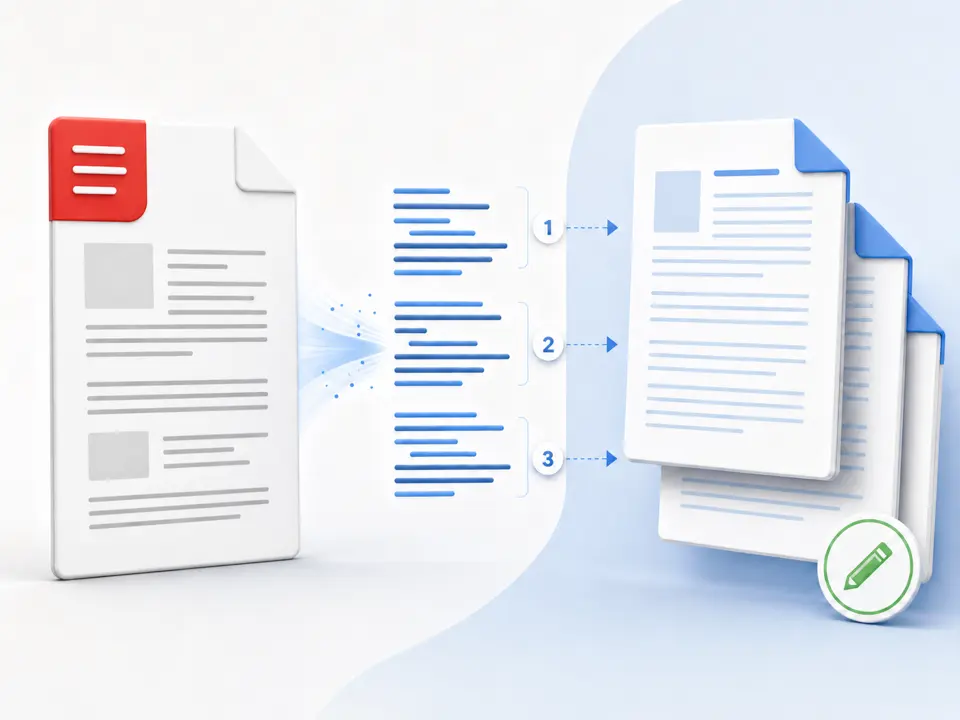
Use PDF to Word when you need editable text from a digitally generated PDF. TiPDF extracts the embedded text locally, groups it by source page and creates a simple DOCX without claiming to reproduce the original layout.
The PDF to Word converter reads the document with PDF.js and requests each page's text content. Text fragments are grouped into visual lines using their vertical coordinates, sorted from top to bottom, and ordered horizontally within a line. TiPDF then writes a DOCX with a heading for each source page, plain paragraphs for the extracted lines and a page break between page groups.
This creates genuinely editable Word paragraphs, but it is a text-extraction workflow rather than visual reconstruction. A PDF stores drawing instructions, positioned glyphs, images and font resources; it does not necessarily contain the semantic paragraphs, columns or table cells that a Word file expects. Multi-column articles may read in an unexpected order, tables can become lines, headers may repeat, and footnotes can lose their relationship to the main text.
Use this PDF to Word tool for drafting, quoting, accessibility remediation or recovering text when clean editing matters more than matching the page. If the goal is to preserve how a page looks, PDF to PPT renders each page as a slide image, while PDF Reader leaves the original unchanged. For scanned pages with no embedded text, run PDF OCR first and validate the recognition before creating a DOCX.
PDF to Word accepts one genuine .pdf and produces one .docx. Local-heavy jobs allow files up to 100 MiB, and text extraction supports at most 500 PDF pages. Invalid signatures, damaged files and renamed non-PDF content are rejected. An encrypted document must be unlocked with authorization before text can be read.
The PDF to Word output uses standard DOCX structures: one Heading 2 paragraph for each source page, followed by a paragraph for every non-empty extracted line. It does not embed page images, original fonts, coordinates, colors, links, comments, form fields or annotations. The added page headings were not present in the source.
A scanned PDF may yield empty page groups because pixels are not embedded text. The PDF to Word converter does not silently run OCR. For scanned PDF to Word work, run OCR PDF first and verify every recognized character. Handwriting, photographs and protected text also require a different workflow.
Open the PDF in a reader and try selecting a sentence. Selectable text is the best candidate; an image-only scan needs OCR first.
Select or drag the file into the workspace. The browser validates its name, signature, byte size, encryption state and page count before extraction.
TiPDF reads text fragments page by page, assembles visual lines and builds a DOCX in browser memory. Progress identifies the page currently being read.
Open the Word copy and compare headings, paragraphs, reading order, punctuation and non-Latin characters with the PDF. Pay special attention to columns, tables, equations and repeated headers.
Apply Word styles, recreate tables and replace page-group headings only after validating the text. Keep the source as the visual reference; the DOCX is not an archival substitute.
PDF to Word works well for paragraphs from a single-column, digitally generated report. Apply current Word styles, then compare all figures and legal wording before publishing.
Use PDF to Word to create an editable working copy for notes and quotations. Page-group headings help trace a passage, but citations should reference the authoritative PDF.
Use extracted text as a starting point for headings, lists and readable order in a new accessible document. The converter does not infer those semantics for you.
Move uncomplicated text into a new template without manual retyping. A form, brochure or complex financial table should be rebuilt from its original source rather than forced through plain extraction.
PDF to Word quality depends on the source text layer. Well-formed single-column PDFs tend to produce cleaner lines; positioned letters, overlapping text, vertical writing, unusual encodings and multiple columns can cause spacing or order errors. The DOCX uses ordinary paragraphs and does not preserve kerning, exact line wraps, backgrounds or typefaces.
Images and page geometry are intentionally omitted. A blank result usually indicates an image-only scan. OCR PDF can create searchable text in English, Simplified Chinese or both, but recognized characters must be checked. No PDF to Word converter can infer missing words from an unreadable scan with certainty.
PDF reading, text extraction and DOCX packaging run in browser memory on the current device. The handler does not call server conversion, storage, sharing or AI routes and does not request upload approval. The site may still load its normal resources or analytics; the local claim applies specifically to the document workflow.
Reloading clears the active conversion. The source PDF and downloaded Word file remain under the browser and operating system's control. TiPDF cannot erase local downloads, backups or files you later share, so handle confidential text on an appropriate device.
No. It contains extracted text in page-grouped paragraphs, not a reconstructed visual layout. Tables, columns, images, fonts and precise positioning are not preserved.
No. It reads embedded text. Run OCR PDF first for a scan, then review the recognized content before further conversion.
PDF glyphs are positioned visually and may not carry semantic order. The extractor sorts fragments by approximate coordinates, which cannot reliably reconstruct every column or table.
Yes. The local text-extraction workflow requires no account or upload approval. You remain responsible for checking the DOCX against the source.
Only after unlocking it with the correct password and permission. The tool does not bypass encryption.
Yes, extracted lines are standard Word paragraphs. Editing is straightforward, but restoring document structure and typography remains a manual task. This is a PDF to DOCX text recovery workflow, not visual reconstruction.
Send one approved Word file to the configured office renderer and verify the returned PDF.
Recognize English or Simplified Chinese locally and download searchable PDF plus plain text.
Extract embedded PDF text into column A of one worksheet per source page.
Route one supported file through the appropriate local or approved remote conversion path.
PDF to Word capability copy was checked against the pdf-to-docx registry, PDF.js line extractor and DOCX builder on July 18, 2026. Automated tests confirm embedded text appears in a valid Word package; layout preservation and automatic OCR are explicitly excluded.