Finalizing completed forms
Turn supported field widgets into stable visible content so recipients see entered values without relying on form behavior.
Drop files here
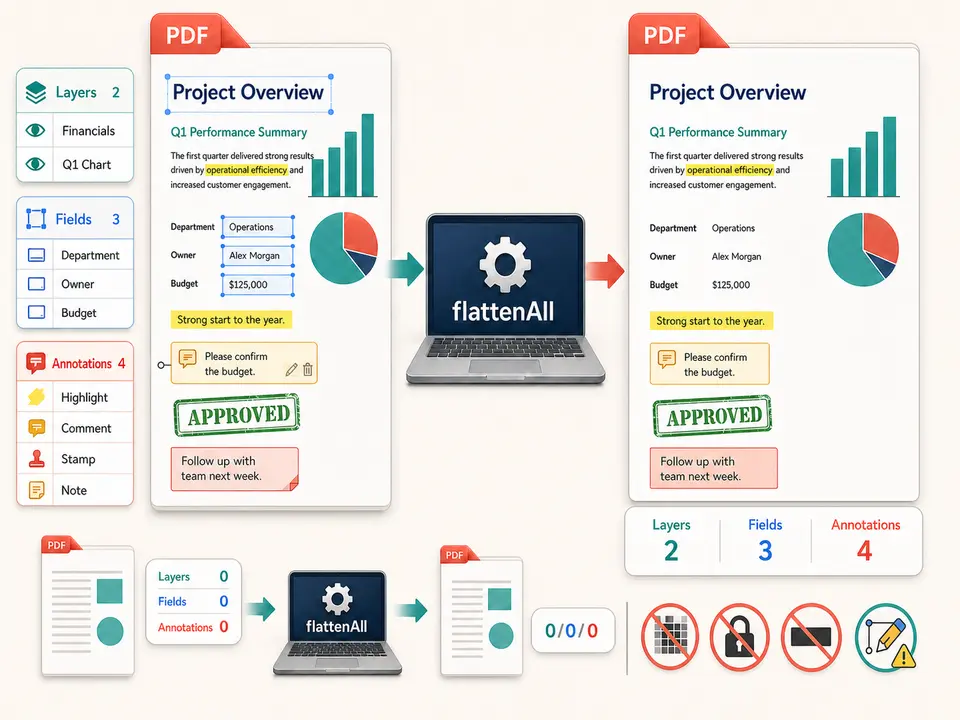
Flatten PDF files locally when supported interactive objects need permanent page appearances. TiPDF processes layers, form fields and annotations, saves a new document and reports how many objects were flattened.
The Flatten PDF workflow validates one source and loads it with the local PDF engine. Its flattenAll operation visits optional-content layers, interactive form fields and annotations, preserves their supported visual appearances in page content and removes or resolves the corresponding interactive structures. It then saves a separate file with a flattened suffix.
Flatten PDF metadata reports three exact counts: layers, form fields and annotations. The completion message names those counts when at least one object changes. If none are found, the engine still rewrites the document and describes it as a stable presentation copy rather than inventing flattened objects.
Flatten PDF is not the same as rasterizing pages. Ordinary text, images and vectors can remain PDF page content. It is also not encryption, redaction or a universal lock against editing. A capable editor may still modify remaining page objects after flattening.
Select one .pdf that passes Flatten PDF signature and readable-file validation. The shared local file ceiling is 100 MiB, and the document page guard applies. Damaged cross-references or encrypted sources cannot be processed without first using the authorized Unlock workflow.
The local engine determines which layers, AcroForm fields and annotation subtypes it can flatten. Appearance dictionaries matter: an unusual widget or annotation without a usable visual appearance may not reproduce as expected. Dynamic XFA forms, JavaScript, embedded files, portfolios, multimedia and every proprietary layer system are not promised.
The route has no page selector or object-type switches. It applies flattenAll to the whole document. To flatten PDF safely, users needing to preserve certain fields or comments should make an authorized copy and remove or isolate those objects before running the operation.
Complete values, choose checkboxes and confirm calculated appearances before making them permanent.
Accept, delete or retain comments and annotations intentionally; flattening can preserve their visible appearance without edit controls.
Save the source under version control because flattened fields cannot be restored by this tool.
Run the whole-document operation and record the reported layer, field and annotation counts.
Verify values, signatures, stamps, highlights, comments, layer visibility, text selection and printing before distribution.
Turn supported field widgets into stable visible content so recipients see entered values without relying on form behavior.
Bake approved stamps, highlights or comments into page appearance after the review record is finalized.
Resolve supported layer appearances for a presentation copy when recipients may use viewers with different layer controls.
Reduce interactive-object surprises before merging, printing or sharing. Flattening does not certify a document, create a digital signature, remove hidden data, satisfy archival standards or guarantee identical behavior in every viewer.
Flattening depends on the visual appearance stored or generated for each supported object. A field value can be logically present while its appearance is stale; a comment may use a viewer-specific icon; a layer may participate in complex visibility rules. Review the source in a reliable viewer and regenerate appearances before processing when possible.
The operation does not convert every page into an image, so searchable text and vector quality can remain. That is preferable for accessibility and print sharpness, but it means ordinary page content is still structurally editable. Flatten PDF forms does not mean secure PDF bytes.
Use Protect PDF separately for password encryption, Redact PDF for irreversible visible-region removal, and the rasterizing redaction behavior only when structural destruction is intended. Each operation answers a different risk.
Source reading, object flattening and PDF saving happen in browser memory on the current device. This handler does not send the document to conversion, storage, sharing or AI services. Normal application resources may still load from the site.
Local processing does not remove sensitive hidden content automatically. Metadata, attachments, unused objects, revision remnants or text underneath a visible annotation may remain unless the PDF engine specifically resolves them. Flattening a black rectangle is not safe redaction.
The source and downloaded result remain under device control, and TiPDF cannot delete backups or later shares. Inspect document properties and use an approved sanitization process when hidden-data removal is required. Preserve the editable original with appropriate access controls.
Yes, when the local engine supports their stored appearances; inspect stamps, highlights and comments afterward.
Yes. This local workflow has no checkout or account requirement, subject to file and page limits.
No. Remaining text, vectors and images may still be editable.
The engine also processes supported layers and form fields.
No. It flattens supported interactive objects without intentionally rasterizing every page.
No. Use Protect PDF for password encryption.
The engine rewrites a stable presentation copy and reports zero counts.
Populate existing AcroForm controls from exact field names, then optionally flatten their appearances.
Add the same visible blue review note near the upper-left of all or selected PDF pages locally.
Apply AES-256 locally with one shared user/owner password and clearly defined PDF permission flags.
Use Redact PDF to rasterize every page and paint one validated black rectangle.
Flatten PDF capability copy was verified on July 18, 2026 against local PDF validation and the @libpdf/core flattenAll operation. Fixtures contain optional-content layers, text fields, checkboxes, stamps, highlights and comments, plus a document with none of those objects. Tests compare the returned layer, form-field and annotation counts, verify visible appearances, confirm a separate flattened artifact and check that ordinary text remains selectable rather than page-rasterized. The flatten PDF online wording describes browser-local execution, not server upload. The flatten PDF forms workflow excludes encryption, redaction, digital signatures, universal non-editability, XFA guarantees and hidden-data sanitization.