Repeatable applications
Prepare a reviewed JSON map for a stable form version and let the PDF filler reduce repetitive typing. Revalidate names whenever the issuer publishes a new PDF.
Drop files here
Use this PDF filler when a document already contains interactive AcroForm fields. Map exact field names to values in JSON, optionally flatten the completed controls and download a separate filled PDF.
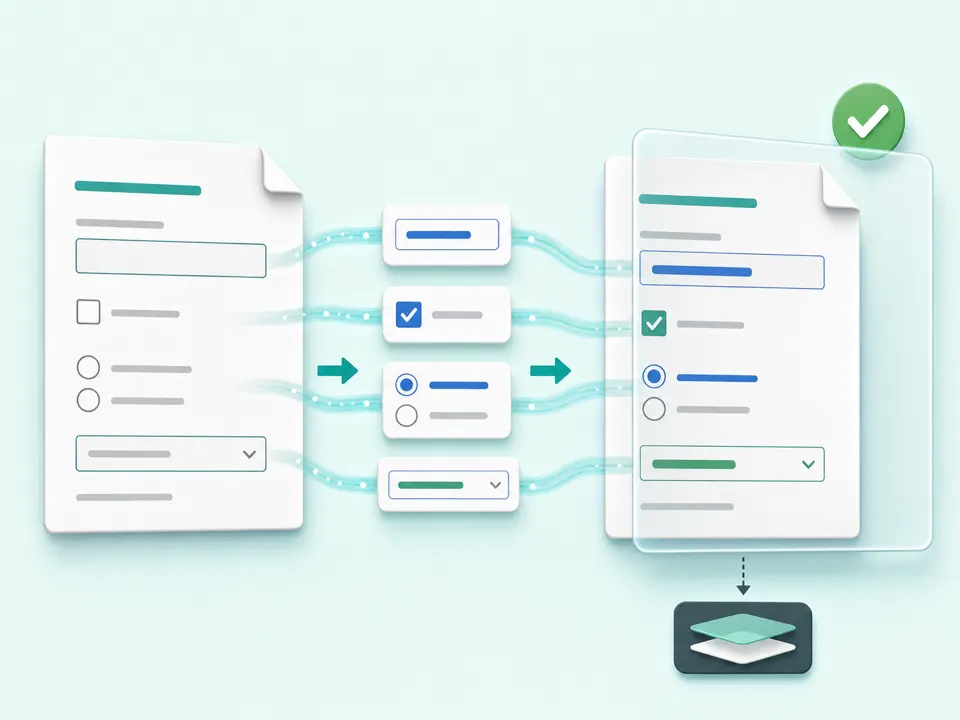
The PDF filler opens the document's AcroForm and maps every existing field name to its control object. Your JSON supplies matching name-value pairs. Text fields receive strings; checkboxes follow truthiness; radio groups, dropdowns, and option lists select the provided string. Unknown names stop the operation with a specific error.
The tool does not discover blank lines or create fields on a flat page. A document that looks like a form may contain no AcroForm controls. TiPDF does not guess labels, inspect nearby text, or expose a graphical field browser. You need exact internal names and valid options from the author. Unsupported controls return an error.
After the PDF filler applies values, fields can remain interactive or be flattened. Flattening makes current appearances permanent page content and removes normal field editing. It can improve presentation stability but makes corrections harder and does not create a digital signature. Keep an unflattened copy until every value is checked.
The PDF filler accepts one genuine .pdf within 100 MiB and 500 readable pages. Values must be a JSON object, such as undefined. Arrays and malformed JSON are rejected. Unlock encrypted files with authorization first.
PDF filler controls include text fields, checkboxes, radio groups, dropdowns, and option lists. Text values become strings. Checkbox behavior follows JavaScript truthiness, so use the booleans true and false rather than the non-empty string "false". Choice values must match an option inside the PDF.
The PDF filler creates one new .pdf and reports the applied key count and flattening state. Omitted fields retain their value. A missing key, unsupported control, or invalid choice can stop the job; correct the mapping instead of assuming partial completion.
Open the file in a reader and click its controls. A printed line or scanned box is not enough; the document must contain AcroForm fields.
Use documentation from the form author or a PDF form inspector. Names can differ from visible labels and are case-sensitive. Record valid radio, dropdown, and list options.
Put each internal name in quotes and assign a string, number, or boolean. Validate commas, braces, and quotes before pasting the object.
Leave it off when recipients must edit controls. Turn it on only for a final presentation copy after every value is verified.
TiPDF fills fields locally and downloads a new file. Reopen it in a second viewer, check every value and control state, and retain an unflattened working copy.
Prepare a reviewed JSON map for a stable form version and let the PDF filler reduce repetitive typing. Revalidate names whenever the issuer publishes a new PDF.
Use the PDF filler to populate known text and choice controls from approved records. Do not copy sensitive values unless downstream handling is appropriate.
Flatten verified fields when a receiving viewer handles interactive forms poorly. This preserves appearance, not legal authenticity or identity.
Use controlled values to confirm that names and options behave as expected. The PDF filler can reveal unsupported controls, but it is not form-authoring or accessibility software.
PDF filler appearance depends on how the form author configured widgets, fonts, sizes and update appearances. A long string may clip inside a short field; a selected value can be valid but visually cramped. TiPDF sets values without redesigning controls or automatically shrinking every font. Review the result in more than one viewer when the destination environment is known.
Flattening makes field appearances part of page content. It can prevent casual editing and reduce viewer differences, but it is not encryption, redaction or certificate signing. Hidden values, metadata or unrelated interactive features require separate review. Use Sign PDF only for an accepted typed visual mark; it also is not certificate-backed.
The PDF filler processes the document and JSON values in browser memory on the current device. This handler does not call conversion, storage, sharing or AI endpoints and does not request upload approval. Normal site resources may still use the network; local processing refers to the selected document and values.
Refreshing clears the active job, but pasted values may remain in browser or operating-system clipboard history, and downloaded files remain on the device. TiPDF cannot delete local copies, backups or later shares. Treat completed forms as sensitive whenever they contain personal, financial or health information.
No. It fills existing AcroForm controls only. A scanned or printed-looking form without interactive fields needs form-authoring software.
Use information from the form author or a PDF inspector. Visible labels are not guaranteed to match internal names.
Yes. This local form-filling workflow has no checkout or account requirement. You still need a compatible AcroForm and exact internal field names.
It makes current field appearances permanent page content and removes normal field editing. Keep an editable copy before flattening.
It fills supported controls. Certificate signing is not provided; the separate Sign PDF tool adds only a typed visual mark.
Reopen the result in another viewer and compare every field with the source data before submission.
A non-empty JSON string is truthy. Use the boolean false without quotation marks to clear a checkbox.
Place a typed visual name and signature line near the lower-right of one PDF page.
Use Flatten PDF for supported layers, form fields and annotations with exact counts.
Add a visible text note to selected PDF pages without replacing existing content.
Apply AES-256 locally with one shared user/owner password and clearly defined PDF permission flags.
PDF filler capability copy was checked against the AcroForm handler on July 18, 2026. Tests cover valid local PDF output; supported controls, exact-name validation and optional flattening are documented without claiming field creation or certificate signing. The PDF filler does not infer missing controls.