Packaging legacy scans
Combine older BMP scan exports into a convenient reading copy, then run OCR separately only if searchable text is needed.
Drop files here
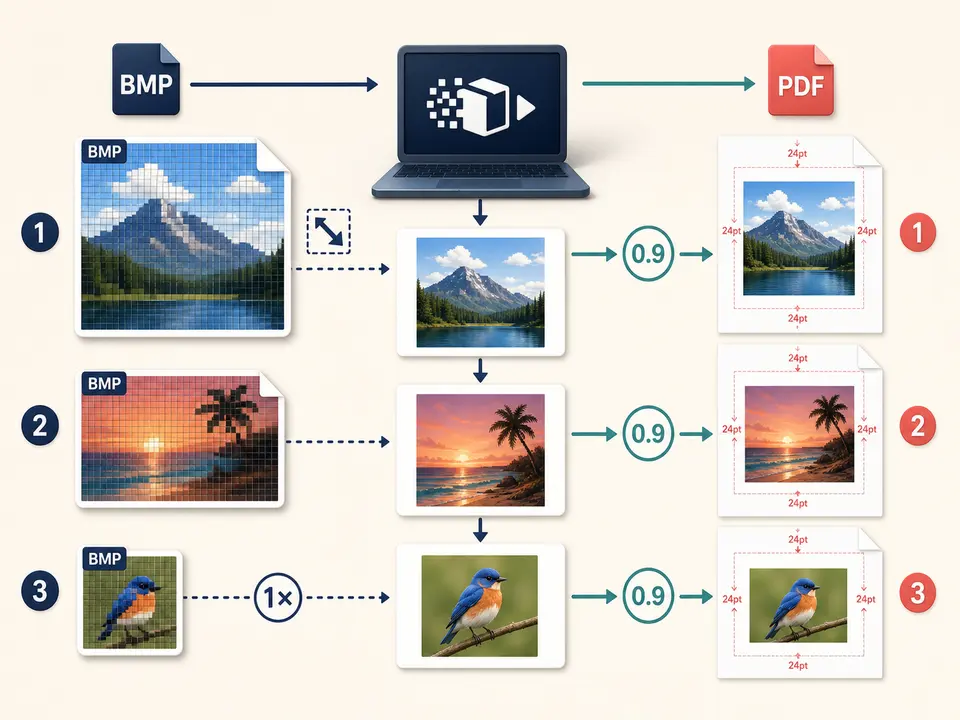
Convert BMP to PDF when separate bitmap files need one ordered document. TiPDF decodes each BMP locally, places it on a white canvas and creates one centered portrait A4 page per file.
The BMP to PDF converter processes the selected list from first to last. For every source, the browser tries createImageBitmap and falls back to an Image element if needed. The BMP to PDF decoder checks width and height before creating a same-size canvas.
BMP to PDF uses an alpha-disabled canvas, fills every pixel with white and draws the bitmap over it. TiPDF then encodes the canvas as JPEG at quality 0.9 and embeds it into a new PDF page. This means the PDF does not contain the original BMP stream or a guaranteed lossless copy of every pixel.
Each BMP to PDF page uses portrait A4 dimensions, with 24 PDF points of margin. The decoded image keeps its aspect ratio and is reduced if it exceeds the available area; a smaller bitmap is not enlarged. One input creates one page, and all pages are combined in selection order into one artifact.
BMP to PDF accepts one to 100 .bmp files. Each local file can be up to 100 MiB and must pass content-signature validation. BMP files are often lightly compressed or uncompressed, so byte size can become the first practical limit even when dimensions appear modest.
A BMP to PDF bitmap may contain no more than 80 million decoded pixels, and all canvases together may contain no more than 250 million. Those checks protect browser memory. Width or height must also be positive and within canvas capability. Damaged headers, unsupported BMP variants or allocation failure produce an error rather than a partial PDF.
The result is named from the first source, with an images suffix when several files are selected. Only BMP is accepted on this specialized page; use the mixed image workspace when JPG, PNG, GIF, HEIC, TIFF or WebP must join the same result.
Open every bitmap and check orientation, color, dimensions, blank borders and whether it is the intended version.
Choose files in reader sequence. The converter does not sort by embedded content or modification date.
Large BMP sources can consume substantial memory after decoding. Reduce dimensions with an approved image editor when the pixel total is too high.
TiPDF decodes each source, composites it on white, encodes JPEG 0.9 and centers it on a separate A4 page.
Verify page order, fine lines, small text, color, white borders and print size. Keep original bitmaps because the output representation is lossy.
Combine older BMP scan exports into a convenient reading copy, then run OCR separately only if searchable text is needed.
Use a bitmap to PDF workflow for approved screen captures while checking that small interface text survives JPEG encoding.
Place diagrams or instrument output on consistent A4 sheets. There are no captions, headers or filenames printed automatically.
A multi-page PDF can be easier to send than many BMP files, but the converter does not promise a smaller result or archival conformance.
BMP can store crisp pixel art, line drawings or screenshots without JPEG artifacts. The converter's JPEG 0.9 step may introduce ringing, softened edges or color changes, especially around high-contrast text. The white canvas removes any alpha-like behavior exposed by the decoder.
Images larger than the A4 content box shrink proportionally; smaller images remain at their decoded pixel-based size and can leave substantial white space. There is no crop, rotation, landscape, DPI, color-profile or margin control. A BMP to PDF converter cannot infer physical print scale reliably from pixels alone, so measure a printed proof when dimensions matter.
Source bitmaps also vary in palette depth, compression mode, row ordering and embedded resolution metadata. Browser decoding normalizes those details into a canvas before the document writer sees them. Two files that look identical in an image viewer can therefore produce different byte sizes or subtle color differences after normalization. Compare representative gradients, one-pixel rules, dark shadows and saturated colors at normal zoom and at print scale. If an exact technical record of original pixels is required, archive the source files beside the convenience document and use checksums; the assembled derivative is designed for viewing, not forensic preservation.
BMP decoding, canvas drawing, JPEG encoding and PDF writing happen in browser memory on the current device. This handler does not send image bytes to conversion, storage, sharing or AI endpoints and does not request remote approval. Normal site and decoder resources may still use network access.
Sources and downloaded results remain on the device. TiPDF cannot delete local files, backups or later shares. BMP pixels can reveal sensitive screens or scans even when filenames are absent, so inspect every visible page before distribution.
Yes. This local workflow has no checkout requirement, subject to file and pixel limits.
Yes, up to 100, with one page per source in selection order.
It uses JPEG quality 0.9, so line art and text can change; preserve the originals.
No. The fit scale never exceeds one, so small bitmaps remain centered at their calculated size.
No. Image pixels are not OCR text.
No. Every output page uses portrait A4 geometry.
Use Image to PDF for mixed supported formats with one local A4 page per decoded canvas.
Combine JPG or JPEG images locally into one ordered A4 PDF with one image per page.
Combine up to 100 PNG files locally into one ordered A4 PDF with white transparency flattening.
Decode every directory in selected TIFF files locally and place each frame on its own ordered A4 PDF page.
BMP to PDF capability copy was verified on July 18, 2026 against BMP-only registration, browser decoding, white alpha-disabled canvas, 80/250-million pixel guards, JPEG 0.9 encoding, 24-point margins and portrait A4 assembly. Evidence includes ordinary single-file and ordered multi-file artifacts under browser memory limits. The bmp to PDF converter excludes lossless embedding, OCR, enlargement, landscape, captions and print-scale guarantees.