Screenshot packets
Use PNG to PDF for ordered interface captures or instructions. Check small text after JPEG embedding and avoid exposing account details.
Drop files here
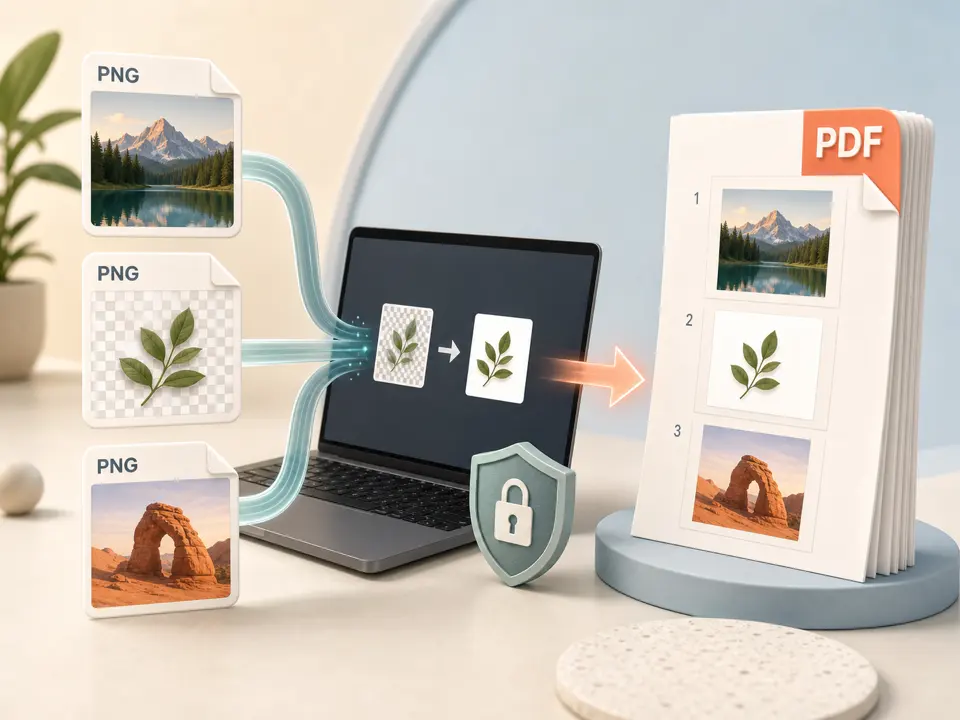
Convert PNG to PDF when separate graphics or screenshots need one document container. TiPDF decodes up to 100 PNG files locally, flattens transparency onto white and centers each image on its own ordered A4 page.
The PNG to PDF handler validates every file, decodes it in the browser, and draws it on a canvas without alpha transparency. TiPDF fills the canvas white first. A transparent logo or cutout therefore gains a white background instead of retaining see-through areas.
PNG to PDF encodes each canvas as JPEG at quality 0.9 before embedding. The original PNG byte stream is not stored unchanged. Although PNG is lossless, the page contains a JPEG representation and can show artifacts around sharp edges or fine text. Ancillary PNG chunks, original compression choices, and source metadata are not carried through as an archival package. Use the output for document assembly, not as an archive of original assets.
Each decoded image becomes one A4 portrait page in selection order. The PNG to PDF converter does not make contact sheets, place several images on one page, add captions, or infer sorting. Clear filenames and reviewed picker order are essential. The output is one PDF. For a numbered sequence, compare the first and last page and every transition where the filename pattern changes.
PNG to PDF accepts 1–100 .png files. Each can be up to 100 MiB, but one decoded image may not exceed 80 million pixels and the job may not exceed 250 million. A compact PNG can expand greatly in memory. Empty files, unknown signatures, and renamed content are rejected.
Every page measures about 595.28 by 841.89 PDF points with a 24-point margin. TiPDF preserves aspect ratio, scales down only when needed, and does not enlarge beyond decoded dimensions. A wide graphic remains horizontal within portrait A4 and can leave white space. Very small source images stay small rather than being enlarged into visibly soft artwork.
There are no Letter, landscape, margin, crop, quality, background-color, or multi-image controls. The filename uses the first source basename and adds an images suffix for multiple files. Metadata reports file and page counts. If the receiver requires a different sheet size or bleed, prepare that layout before this workflow.
Preview every PNG against white. Add a chosen background first when white would hide light artwork or change the intended appearance.
Use zero-padded numbers for long sets and choose files in reading sequence. TiPDF does not sort by visible content.
The browser checks count, extension, signature, byte size, and decoded pixel limits.
TiPDF paints each source on white, encodes a quality-0.9 JPEG representation, and places it on one A4 page locally.
Compare page count, order, transparency treatment, fine edges, color, orientation, and white space. Keep the lossless source files.
Use PNG to PDF for ordered interface captures or instructions. Check small text after JPEG embedding and avoid exposing account details.
Merge PNG to PDF pages for independent charts or drawings. Wide diagrams may appear small on portrait A4 and need source reformatting.
Create one PDF when a destination rejects multiple PNG files. Verify file-size, page-size, and accessibility requirements.
A transparent PNG to PDF conversion produces a white-background proof. Retain transparent originals; the PDF is not a color-managed production master.
PNG to PDF deliberately flattens transparency because the canvas has alpha disabled. Semi-transparent pixels blend with white, so shadows and antialiased edges can differ from a dark background. JPEG quality 0.9 is practical but lossy; line art can reveal artifacts absent from the PNG. Compare a zoomed result with the source when thin UI text, barcodes, or small diagram labels matter.
The pages are image-based. Screenshot text does not become selectable, searchable, or screen-reader text. Run OCR separately and verify it. A PDF wrapper does not create semantic structure, certification, PDF/A compliance, or accessible reading order. Color management also follows browser decoding and canvas output rather than a prepress proofing pipeline, so inspect brand colors in the intended viewer.
The PNG to PDF job decodes, paints and assembles images in browser memory on the current device. Image bytes are not sent to server conversion, AI, sharing or storage routes, and no upload approval is requested. Normal application assets may still use the network; the local statement concerns selected files.
Refreshing ends the active job, but source PNGs and the downloaded PDF remain on the device. TiPDF cannot delete or prevent forwarding them. Screenshots often contain notifications, identifiers, account names, browser tabs, or other interface details outside the intended subject. Inspect every image at full size before combining and distributing it, and use a trusted device when the material is confidential. Review the final page order, orientation, whitespace, and edge clarity before sharing. Keep the original images when later re-export or comparison may be necessary. Retain backups.
No. The browser paints an opaque white canvas before embedding the image.
No. Each canvas is encoded as JPEG at quality 0.9 even though the source PNG is lossless.
Yes. The local workflow has no account or checkout requirement. File, count, and pixel limits apply.
Not on this route. Every decoded PNG receives its own A4 page.
No. Pages are fixed A4 portrait with a 24-point margin.
No. The output remains image-based unless a separate OCR workflow is applied.
Render all or selected PDF pages locally as separate lossless PNG images at three resolution scales.
Combine JPG or JPEG images locally into one ordered A4 PDF with one image per page.
Use Image to PDF for mixed supported formats with one local A4 page per decoded canvas.
Apply a fixed document-style treatment to existing images and assemble them as one image-based PDF.
PNG to PDF capability copy was verified on July 18, 2026 against the png-to-pdf registry, browser decoder, opaque white canvas, JPEG 0.9 encoder, A4 placement and pixel guards. Claims avoid transparency-preservation and lossless-output promises.