Distribution copies
Use PPT to PDF for a fixed visual deck when recipients do not need slide editing. The PDF still permits copying unless separately protected.
Drop files here
Convert PPT to PDF when a slide deck needs a fixed document copy. After explicit approval, TiPDF uploads one PPT or PPTX to the configured private Gotenberg service and returns its LibreOffice-rendered PDF.
The PPT to PDF route does not run a PowerPoint renderer in the browser. It classifies the presentation as server-tier and displays a remote notice. After approval, TiPDF sends the selected file through its API to the configured Gotenberg LibreOffice endpoint.
PPT to PDF service output must begin with the PDF signature before download. TiPDF applies a safe filename, application/pdf type, no-store cache policy, and nosniff protection. Timeout, rejection, missing service, or invalid response becomes an error rather than a disguised file.
PowerPoint to PDF produces static pages. Slide text, shapes, charts, and photos may remain visibly arranged, but animations, transitions, triggers, presenter notes, comments, video playback, and interactive navigation are not PDF behaviors. LibreOffice and the source determine exact handling, so review every page.
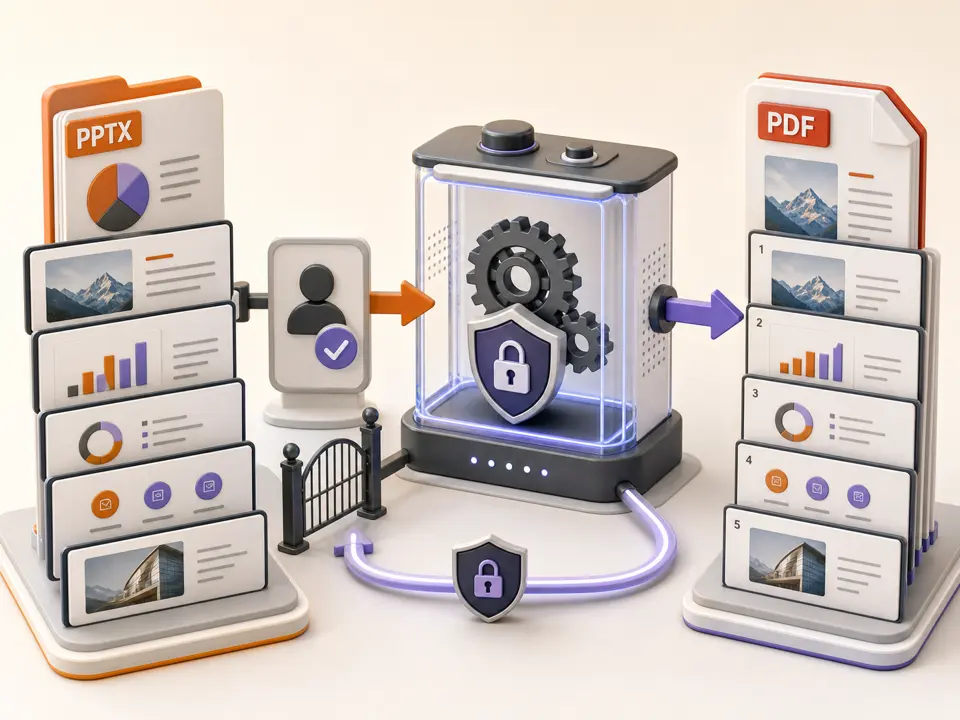
PPT to PDF accepts one non-empty .ppt or .pptx up to 50 MiB. The API requires Content-Length and rejects oversized multipart requests. An arbitrary renamed file is not a supported presentation; the service may reject damaged or inconsistent content. Legacy .ppt and packaged .pptx use different internal structures, so open an old deck in a trusted authoring application and save a clean copy before conversion when possible.
PPT to PDF needs a valid HTTP or HTTPS GOTENBERG_URL. TiPDF posts to /forms/libreoffice/convert with a 10–300 second timeout, default 120, and a minimum 10-second request interval per key. A media-heavy deck can exceed service resources. A timeout does not prove the source is invalid; it can also indicate deployment capacity or an unavailable renderer.
Only the PPTX to PDF source file is sent. Linked videos, network images, custom fonts, external data, and companion files are not packaged. Resolve or embed authorized dependencies in the authoring application first. Verify that charts display current values and that linked spreadsheets are no longer needed to understand the final pages.
In PowerPoint, inspect each slide at its final state. Replace unsupported dynamic material with authorized static content when necessary.
Embed permitted fonts and images, remove broken links, confirm video poster frames, and save the PPT or PPTX.
Choose a file within 50 MiB. TiPDF identifies the remote job and sends nothing before approval.
Read the privacy notice and continue only when the configured service and document sensitivity meet policy.
The server returns a static PDF and TiPDF validates its signature. Compare slide count, fonts, line wraps, charts, images, visible content, and page boundaries.
Use PPT to PDF for a fixed visual deck when recipients do not need slide editing. The PDF still permits copying unless separately protected.
PPT to PDF can capture the approved slide state beside minutes. Notes, demonstrations, and audience interactions require separate records.
Convert PowerPoint to PDF where a portal rejects presentation files. Verify orientation, legibility, and maximum output size.
Turn slides to PDF pages for proofing or handouts. This route has no notes-page, multiple-slides-per-sheet, or printer-mark settings; prepare those in the source application.
PPT to PDF rendering through LibreOffice can differ from Microsoft PowerPoint in font metrics, line wrapping, shape effects, charts, equations and proprietary features. Missing fonts may substitute and change layout. Transitions and animation sequences collapse to a static result, while embedded audio or video is not guaranteed to become meaningful PDF content.
No pixel-perfect fidelity guarantee is made. Inspect every page, especially brand typography, cropped images, transparent effects, tables, charts and right-to-left or complex-script text. Check slide masters, theme fonts, and any object that extends beyond the visible canvas, because alternate renderers can expose clipping or fallback styling. Also compare page count with the intended visible slide count. For an exact Microsoft-rendered export, use the original desktop application in its supported environment and compare the result.
The PPT to PDF job uploads the deck only after explicit consent, passing through the TiPDF server to the configured Gotenberg service. The response uses no-store caching, but TiPDF cannot promise universal automatic deletion for every independently operated deployment. Operators are responsible for TLS, authentication, network isolation, logging and retention settings.
Review hidden slides, notes, comments, metadata and embedded assets before approval, because source files can contain information not obvious during slideshow mode. Use the authoring application's document inspector when confidential material may exist outside the visible slide area. Closing the page does not erase the source, server logs or downloaded PDF. Do not use remote conversion when policy or sensitivity forbids it.
No. The deck uploads after approval to the configured Gotenberg service.
No. PDF is static; review which visual state the renderer captured.
The page has no checkout, but deployment access and its configured service can vary. Remote approval is required.
Do not expect it. Use an authorized static poster or distribute media separately.
Not promised. Inspect the output and prepare notes pages in the source application if needed.
No. LibreOffice can differ in fonts, charts, effects, and proprietary features; compare every slide.
Render every PDF page locally as one contained image on its own widescreen PPTX slide.
Send one approved Word file to the configured office renderer and verify the returned PDF.
Upload one approved XLS or XLSX workbook to the configured service and receive its PDF rendering.
Route one supported file through the appropriate local or approved remote conversion path.
PPT to PDF capability copy was verified on July 18, 2026 against the ppt-to-pdf registry, approval gate, 50 MiB API, LibreOffice route, timeout controls and signature validation. Claims describe static server rendering without fidelity, deletion or local-only promises.