Financial review copies
Use Excel to PDF for a fixed snapshot after validating totals and date context. The PDF is not a substitute for the calculation workbook or audit trail.
Drop files here
Convert Excel to PDF when a spreadsheet needs a fixed reading or sharing format. After explicit approval, TiPDF sends one XLS or XLSX workbook to the configured private Gotenberg service and returns its LibreOffice-rendered PDF.
The Excel to PDF route is a server conversion, not an on-device spreadsheet engine. The client validates the extension and asks the user to review privacy. Only after approval does it put the workbook in multipart form data and send it to TiPDF's conversion API.
Server processing forwards a supported .xls or .xlsx to Gotenberg LibreOffice. TiPDF accepts returned bytes only when they begin with the PDF signature, then applies a safe basename, application/pdf type, no-store caching, and nosniff headers. Metadata states that an upload occurred.
LibreOffice decides how sheets, print areas, repeated rows, scaling, charts, fonts, hidden content, and page breaks appear. This Excel to PDF converter has no landscape, fit-to-page, paper, margin, sheet-selection, or formula-recalculation controls. Configure the workbook first and check the rendering against Microsoft Excel.
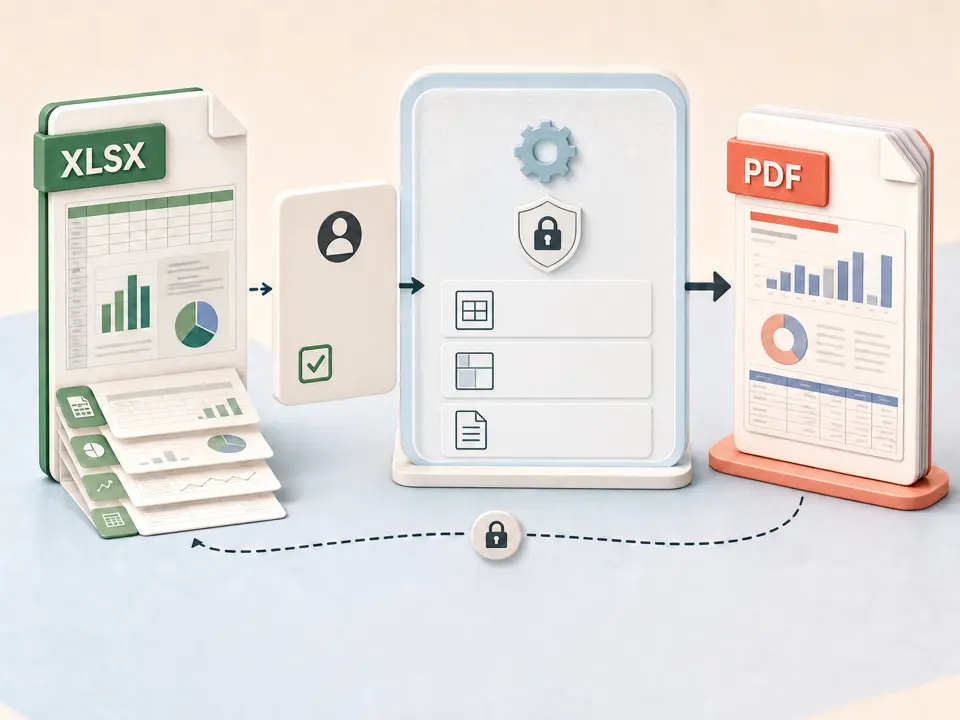
Excel to PDF accepts one non-empty .xls or .xlsx workbook up to 50 MiB. The API requires Content-Length and rejects oversized multipart requests. A random renamed file is not reinterpreted as a spreadsheet. Open legacy .xls files in a trusted spreadsheet application first when compatibility is uncertain, and save a clean source copy before sending it.
Conversion needs a valid HTTP or HTTPS GOTENBERG_URL. The server uses /forms/libreoffice/convert and a 10–300 second timeout, default 120. Service rejection, timeout, network failure, or a non-PDF response becomes an explicit error. A timeout can indicate workbook complexity or deployment capacity rather than a corrupt source.
The endpoint applies a minimum 10-second request interval per key. Large workbooks with many sheets, charts, external links, or unusual fonts can take longer or render differently. The XLSX to PDF route does not upload companion files, macros, linked workbooks, or external font packages. Only the selected workbook reaches the service.
In the authoring application, set print areas, orientation, page breaks, scaling, and repeated headings, then save. TiPDF has no controls for these properties.
Check hidden sheets, comments, metadata, external links, and confidential formulas. A rendered PDF may disclose unintended content.
Choose an XLS or XLSX no larger than 50 MiB. The client identifies a remote server operation.
Read where the file will go and continue only if the deployment and document sensitivity are acceptable.
TiPDF sends the workbook, validates the returned signature, and downloads the PDF. Inspect every sheet boundary, chart, font, total, orientation, and blank page.
Use Excel to PDF for a fixed snapshot after validating totals and date context. The PDF is not a substitute for the calculation workbook or audit trail.
Excel to PDF can render dashboards and tables for recipients who should not edit cells. Verify charts, hidden rows, and page splits.
Use a spreadsheet to PDF copy when a portal requires it. Check page size, legibility, and file-size rules after conversion.
Store an Excel to PDF derivative beside the original workbook. Formal archival standards, signatures, and retention controls require additional processes.
The PDF captures the renderer's visible pages, not Excel's live model. Formulas no longer recalculate, filters are not interactive, cells cannot be edited, and chart data is not live. Font substitution, printer metrics, and LibreOffice compatibility can change wrapping, columns, pagination, or charts. Blank pages often indicate an oversized print area or manual break in the workbook rather than missing data.
No universal pixel-perfect fidelity is promised. Compare page count, print area, headings, merged cells, conditional formatting, charts, dates, and precision against the source. Reconcile displayed totals with the approved workbook before distribution. If the workbook depends on macros, proprietary functions, external data, or exact Microsoft rendering, export from the original desktop application.
Unlike local tools, the Excel to PDF job uploads the selected workbook after explicit consent. It passes through the TiPDF server to the deployment's configured Gotenberg service. The response is marked no-store, but TiPDF does not make a universal automatic-deletion or retention promise for independently configured infrastructure. Operators must secure transport, logs, access and service retention.
Do not approve the upload when the deployment is untrusted or policy forbids remote conversion. Remove sensitive hidden content first and protect the downloaded PDF according to its contents. Closing the page does not delete the source workbook, server logs or downloaded result.
No. It uploads the approved workbook to the configured Gotenberg service.
No. Orientation and print layout come from workbook settings and the service renderer.
The page has no checkout, but deployment access and its configured service can vary. Remote approval is required.
No. The PDF is a static rendering, not a live spreadsheet.
The server returns a configuration error instead of pretending conversion succeeded.
No. LibreOffice can differ in fonts, pagination, charts, and proprietary features; inspect every result.
Extract embedded PDF text into column A of one worksheet per source page.
Send one approved Word file to the configured office renderer and verify the returned PDF.
Upload one approved PPT or PPTX to the configured service and receive a static PDF rendering.
Route one supported file through the appropriate local or approved remote conversion path.
Excel to PDF capability copy was verified on July 18, 2026 against the excel-to-pdf registry, remote-approval gate, 50 MiB API, Gotenberg LibreOffice route, timeout bounds and PDF signature check. Claims avoid local-only, deletion and fidelity promises.