Scanned border cleanup
Use Crop PDF to hide a consistent scanner bed border around pages that share the same dimensions. Automatic border detection and perspective correction are not provided.
Drop files here
Crop PDF pages when excess border space should be hidden consistently. TiPDF insets each selected page's crop box by the same point margin in browser memory, without scaling or reflowing the page content.
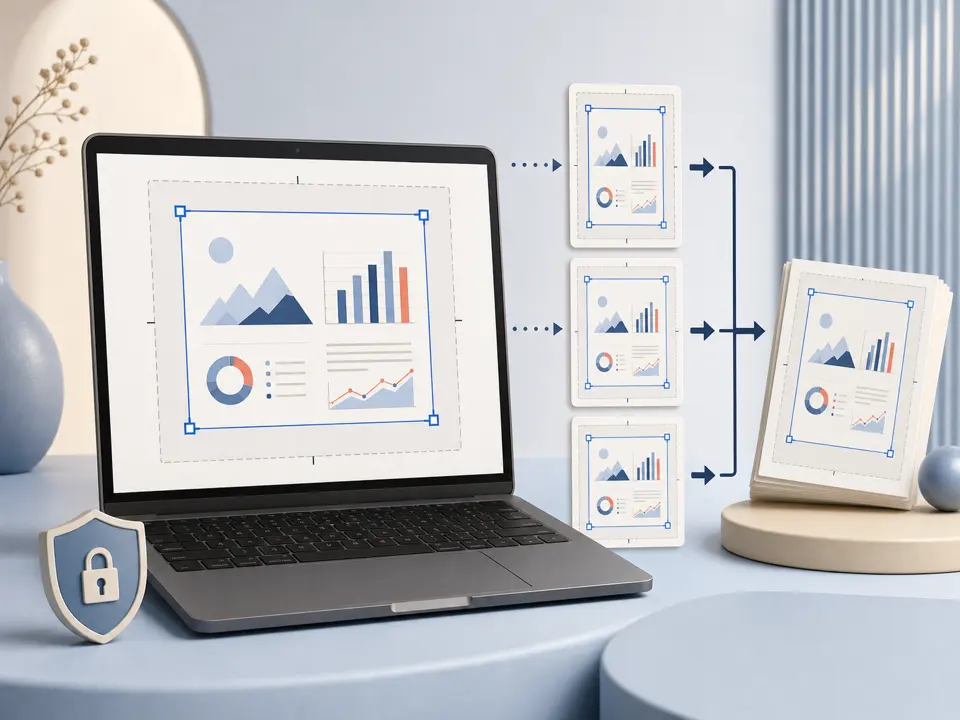
The Crop PDF handler reads the current crop box of every selected page. For a margin of 18 points, it moves the box's x and y origins inward by 18 and reduces both width and height by 36. Crop PDF keeps the underlying text, vectors and images at their existing coordinates and size; a reader simply uses the smaller rectangle as the intended visible region. The page is not rendered as a screenshot.
The Crop PDF operation is symmetrical. One numeric value applies to the left, right, top and bottom of every chosen page. The current controls do not let users drag individual edges, enter different horizontal and vertical amounts, detect white borders automatically or save a separate crop for each page. A mixed document may therefore need several carefully selected jobs if its pages have different border widths.
A PDF cropper changes presentation, not necessarily the stored page objects outside the crop box. Hidden material can remain in the file and may be revealed by another editor that expands the box. Crop PDF is consequently unsuitable for removing confidential content. Use a verified redaction process for secrets, and inspect the rewritten document with appropriate security tools.
Choose one authentic .pdf up to 100 MiB and 500 readable pages. Crop PDF requires the extension to match the PDF signature, and password-protected content must first be unlocked with a known password and authorization. Empty, damaged, mismatched or unreadable documents fail before an output is created.
The Crop PDF interface offers a crop margin from 0 to 200 PDF points and defaults to 18. One point equals 1/72 of an inch in PDF user space before page transforms. A zero margin produces no visible inset, while a large value can remove most of the viewing area. TiPDF refuses any selected page where twice the margin is equal to or greater than the existing crop-box width or height, because a page must retain positive dimensions.
Crop PDF page selection accepts all, individual values, ranges, comma-separated combinations, odd and even. It uses one-based viewer page numbers and validates them against the file. The same margin is applied to every selected page; unselected pages retain their current crop boxes. The output contains the original page count and uses an updated filename suffix.
Open representative pages and estimate an even inset. Remember that 72 points equal one inch and that margins may differ across scanned batches.
Choose or drag one document. TiPDF verifies its signature, byte limit, encryption state and readable page count locally.
Enter all, one page, a range, a combination, odd or even. Group only pages that can safely use the same four-sided margin.
Start conservatively. The handler checks every selected crop box and stops if the remaining width or height would be zero or negative.
The browser updates crop-box coordinates and writes a new file. Inspect edge content, headers, footers, page sizes and every transition; retain the source until the result is accepted.
Use Crop PDF to hide a consistent scanner bed border around pages that share the same dimensions. Automatic border detection and perspective correction are not provided.
Reduce excessive white area before showing pages in a viewer or slide. Page content stays at the same internal scale, although a viewer may zoom it differently to fit the window.
Apply an inset to only the cover, appendix or odd pages when those groups share a layout. Verify page expressions against actual file numbering.
Create a viewing copy with tighter visible bounds. Professional bleed, trim boxes, imposition and printer marks require prepress software, not this simple PDF cropper.
Crop PDF processing does not resample photographs or redraw text, so content inside the new boundary normally retains its PDF representation. It also does not resize the media box or scale objects to fill the cropped area. Some readers display the crop box by default, while specialized software can expose other page boxes; test the destination that will actually consume the file.
Material beyond the new boundary is not a safe deletion. Search, extraction or editing tools may still access objects outside the view. Certificate signatures that covered the original bytes must not be assumed valid after saving. Accessibility reading order can also include content that is no longer visually apparent. Do not use Crop PDF as redaction or as proof that hidden material is gone.
The Crop PDF operation parses, updates and saves the document in browser memory. File bytes are not sent to server conversion, AI, sharing or storage routes, and the handler does not ask for upload approval. Ordinary site assets may still load over the network; the local statement concerns the selected PDF.
Refreshing ends the active task, but the source and downloaded updated file remain on the device. TiPDF cannot delete them or prevent forwarding. Because cropped-away regions may still exist inside the PDF, handle the result according to the sensitivity of the complete source, not only what a normal viewer shows.
No. One margin value is applied evenly to all four sides of every selected page.
No. Objects retain their coordinates and scale; the intended visible crop box becomes smaller.
Yes. The local workflow has no account or checkout requirement, subject to the documented file and page limits.
Do not assume so. Other tools can reveal or extract objects beyond the visible boundary. Cropping is not redaction.
Yes. Use pages, ranges, combinations, odd or even, and verify that the same margin suits them all.
Every page must keep positive crop-box width and height. The job stops when twice the margin reaches either dimension.
Use Rotate PDF for one saved quarter-turn angle without rasterizing page content.
Use Organize PDF for one complete sequence and a single reordered download.
Render all or selected PDF pages locally as separate JPG images at one of three quality levels.
Reduce an image-heavy PDF's byte size with explicit quality tradeoffs and a measured fallback.
Crop PDF capability copy was verified on July 18, 2026 against the crop-pdf registry and local page-box handler. Claims reflect selected-page crop-box insets, the 0–200 point UI range and positive-dimension check without claiming rescaling, deletion or automatic border detection.