Freezing financial reports
Use ODS to PDF for a reviewed calculation state while retaining the formula workbook under version control.
Drop files here
Use ODS to PDF when an OpenDocument spreadsheet needs fixed pages for review, printing or submission. TiPDF requests approval, sends one workbook to a configured private renderer and validates the returned PDF.
The ODS to PDF converter uses server rendering because this browser workflow does not implement a spreadsheet print engine. After explicit approval, ODS to PDF forwards the complete workbook through TiPDF to the configured Gotenberg LibreOffice endpoint.
ODS to PDF relies on LibreOffice for sheets, cell values, formulas, styles, merged areas, charts, images, print ranges and page settings. It exports static pages according to the workbook and service defaults. Formulas are not editable calculations in the result; readers see rendered values and graphics.
TiPDF checks that the service succeeded and that returned bytes start with the PDF signature before offering a download. Configuration failure, timeout, rejected input or invalid output stops the task. The application does not reflow tables or merge pages after the private renderer responds.
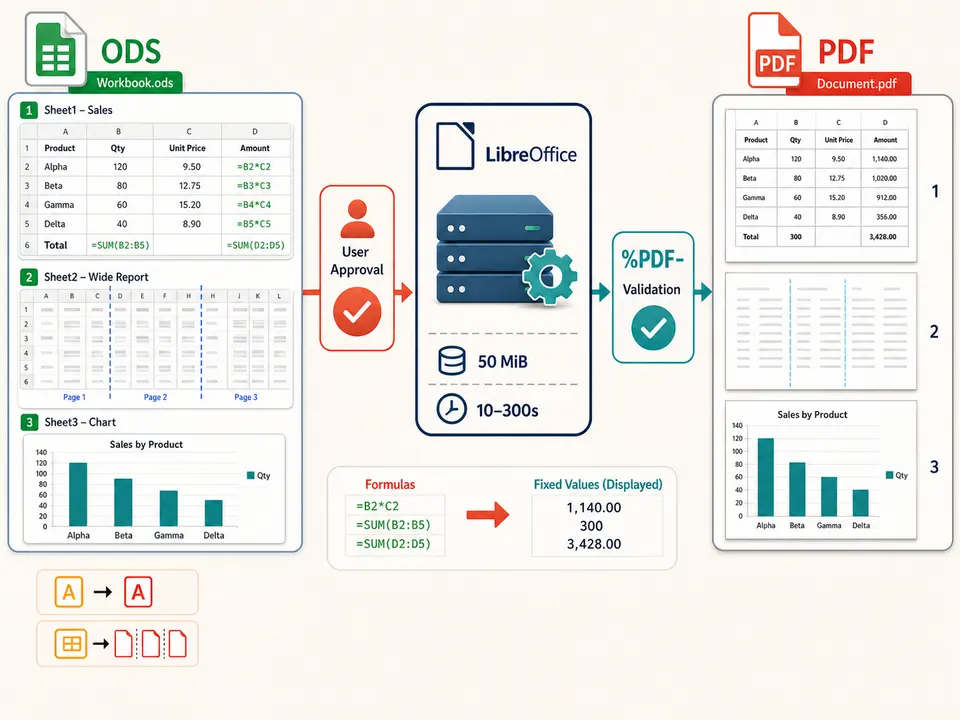
ODS to PDF accepts one valid .ods no larger than 50 MiB. Damaged packages, encrypted workbooks, unsupported extensions or malformed internal XML may fail. The page does not combine files, accept pasted ranges or retrieve a workbook from a public URL.
ODS to PDF needs a configured HTTP(S) Gotenberg address. TiPDF uses the LibreOffice route with a trace identifier and a timeout from 10 to 300 seconds, normally 120. Without configuration, the request stops before conversion.
Fonts, locale, decimal separators, date interpretation and office calculation behavior belong to the renderer environment. External links or data connections are not promised to refresh. Macros are not run as a feature, and password removal is outside this route.
Open the workbook in a trusted editor, refresh approved values and save the intended state.
Review sheet visibility, ranges, breaks, repeating rows, orientation, scaling and headers.
Delete confidential sheets, comments, unused names, external links and embedded objects from the approved copy.
Approve complete-file server processing and wait for the bounded private-renderer response.
Check values, number formats, columns, row breaks, charts, blank pages, repeated headers and final page order before distribution.
Use ODS to PDF for a reviewed calculation state while retaining the formula workbook under version control.
Create a conventional document for systems that do not accept OpenDocument spreadsheets.
Use the workbook's saved print ranges and scaling, then verify that wide tables remain readable on actual paper.
Render approved charts with their supporting tables for review. The output does not preserve live filters, cell editing, data refresh, macros or formula auditing as interactive PDF behavior.
Spreadsheet pagination is sensitive to column width, font metrics, printer settings and scaling. Font substitution can widen labels enough to move a column onto another page. Different locales can display dates, decimals or currency differently, while unsupported functions may return errors or stale cached values.
The web page supplies no orientation, paper, fit-to-width, margin, print-area or sheet-selection options. Those decisions must be saved in the workbook and are interpreted by the service. Large charts, conditional formatting, drawings and transparent images can vary by LibreOffice version.
The output must be checked with wide and long representative sheets. Compare totals and formulas with the approved source, then inspect every page boundary, repeated header and chart label. Preserve the original workbook for recalculation and audit. Include sheets with negative values, zero totals, long labels, wrapped cells and print titles so subtle formatting changes cannot hide in easy examples. Always print one dense page to confirm physical legibility after final scaling.
This route is not local-only. Once approved, the whole workbook goes through TiPDF's application server and the administrator-configured Gotenberg service. Deployment owners control network encryption, endpoint access, service logs, temporary storage and retention.
ODS packages can contain hidden sheets, formulas, named ranges, comments, author metadata, cached results, embedded images and links that are not obvious in the visible print range. Clean a dedicated copy before upload. Rendering is not data loss prevention, redaction or anonymization.
The static download can still expose selectable values. Apply access and retention controls after conversion. Password-protecting the output later does not retract data already approved for processing by the private renderer.
The page has no checkout, but deployment access and the configured renderer determine availability.
No. The output contains static rendered values.
No. Save print ranges and page settings in the workbook before upload.
No guarantee is made; confirm approved values before conversion.
One approved ODS up to 50 MiB.
The service must succeed and return bytes beginning with a PDF signature.
Upload one approved XLS or XLSX workbook to the configured service and receive its PDF rendering.
Use ODT to PDF for one approved 50 MiB private-renderer request.
Use ODP to PDF for one approved 50 MiB private-renderer request.
Route one supported file through the appropriate local or approved remote conversion path.
ODS to PDF capability copy was verified on July 18, 2026 against ODS registration, the 50 MiB server guard, explicit approval, configured HTTP(S) Gotenberg, LibreOffice routing, trace identifiers, 10–300-second timeouts and PDF signature validation. Workbooks cover formulas, cached values, dates, merged cells, print ranges, page breaks, hidden sheets, charts and multilingual text, plus corrupt-package and missing-service failures. The convert ODS to PDF route excludes local-only claims, live formulas, refresh guarantees, web-page print controls, macro execution, PDF/A and encryption. A second convert ODS to PDF check carefully compares rendered totals with the saved approved state.