Distributing meeting decks
Use ODP to PDF for a stable copy while retaining the editable presentation for future sessions.
Drop files here
Use ODP to PDF when an OpenDocument slide deck needs a fixed reading or printing copy. TiPDF requests approval, sends one presentation to the configured private renderer and validates the returned document.
The ODP to PDF converter marks the job as server-side because browsers do not reproduce the presentation model here. After explicit approval, ODP to PDF sends the complete source through TiPDF to the configured Gotenberg LibreOffice endpoint.
ODP to PDF relies on the renderer for slide masters, layouts, text boxes, shapes, charts, tables and supported media poster frames. Each slide normally becomes one PDF page according to source geometry. Animations, transitions, presenter notes and interactive playback are not promised as PDF behavior.
TiPDF accepts the result only after a successful service response whose leading bytes match a PDF signature. A missing endpoint, timeout, rejection or malformed response becomes an error rather than an incomplete deck. The returned filename derives safely from the uploaded presentation.
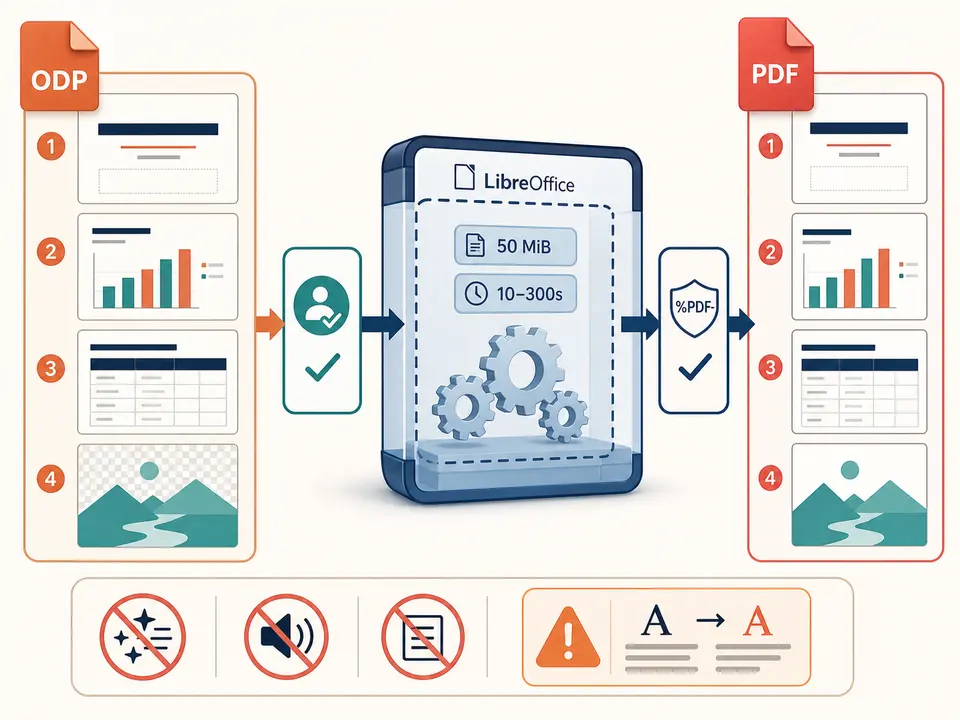
ODP to PDF accepts one .odp no larger than 50 MiB. It must be a readable OpenDocument Presentation package; damaged containers, encryption, missing manifest data or unsupported objects can fail. This route does not combine decks, accept a public URL or turn images into ODP.
ODP to PDF needs a valid HTTP or HTTPS Gotenberg URL. Requests use its LibreOffice route with a trace identifier and a timeout from 10 to 300 seconds, normally 120.
Font availability, locale, media codecs and office filters come from the private service installation. Linked assets unavailable there may disappear. Videos and audio are not embedded as playable PDF experiences, and the page does not offer an option to include speaker notes or handout layouts.
Set final text, visibility, chart data and poster frames; do not rely on animation for essential content.
Inspect theme fonts, backgrounds, aspect ratio, crop areas and objects beyond slide boundaries.
Delete unwanted notes, hidden slides, comments, unused media and confidential metadata from the approved copy.
Approve the complete-file upload and wait for the bounded private-renderer request to finish.
Verify slide order, page count, text wrapping, charts, transparency, image crops and final dimensions before distribution.
Use ODP to PDF for a stable copy while retaining the editable presentation for future sessions.
Create one fixed page per rendered slide, then choose printer imposition outside this tool because it does not produce multi-slide handout sheets.
Freeze charts, diagrams and approved copy for a portal that accepts PDF rather than OpenDocument packages.
Store the output beside the source, version notes and required fonts when provenance matters. The route does not claim PDF/A, accessibility conformance, embedded presenter notes or cryptographic signing.
Presentations depend on exact font metrics, theme masters and object positioning. A substituted font can wrap a title, overflow a text box or move later bullets. Complex gradients, masks, transparency, formulas, charts and imported drawing objects can render differently in the service's LibreOffice build.
The source controls page aspect ratio and orientation. TiPDF supplies no crop, bleed, notes, handout, quality or paper controls. Embedded images may be resampled by the office export filter. Motion has no equivalent in ordinary fixed pages, so an animated sequence can lose intermediate states or narrative timing.
The renderer should be tested with the actual master templates used by the organization. Inspect dense slides, non-Latin text and visual alignment at normal zoom and on the intended printer. Keep the original deck for edits and presentations.
This conversion is not local-only. After approval, the entire deck passes through TiPDF's server to the configured Gotenberg service. Deployment administrators control transport, endpoint access, logs, temporary storage and retention; the page cannot promise how every private installation manages those systems.
A presentation package can contain speaker notes, hidden slides, author properties, comments, embedded media and unused assets beyond the visible final slides. Clean an authorized copy before upload. Static rendering is not redaction and may expose content if the office filter chooses to include it.
The downloaded PDF can be copied and shared outside the application. Apply the correct access policy afterward. Password protection, if needed, is a separate workflow and does not undo the approved server disclosure.
The page has no checkout, but deployment access and the configured renderer determine availability.
No guarantee is made; the output is a static rendering.
No notes or handout option is exposed; review the returned pages.
Renderer fonts and metrics can differ from the authoring computer.
One valid ODP no larger than 50 MiB after explicit approval.
TiPDF requires a successful request and leading PDF signature before download.
Upload one approved PPT or PPTX to the configured service and receive a static PDF rendering.
Use ODT to PDF for one approved 50 MiB private-renderer request.
Use ODS to PDF for one approved 50 MiB private-renderer request.
Route one supported file through the appropriate local or approved remote conversion path.
ODP to PDF capability copy was verified on July 18, 2026 against ODP registration, the 50 MiB server guard, explicit approval, configured HTTP(S) Gotenberg, LibreOffice routing, unique trace headers, 10–300-second timeout bounds and returned PDF signature validation. Test decks cover masters, common aspect ratios, charts, tables, transparent images, hidden slides and multilingual fonts, plus missing-service and corrupt-package failures. The convert ODP to PDF route excludes local-only claims, motion retention, speaker-note controls, universal font fidelity, handout imposition, PDF/A and encryption. A second convert ODP to PDF review compares each source slide with its static page.