Simple lists
PDF to Excel can move one-item-per-line lists into editable rows. Remove repeated headers and normalize entries only after checking the source.
Drop files here
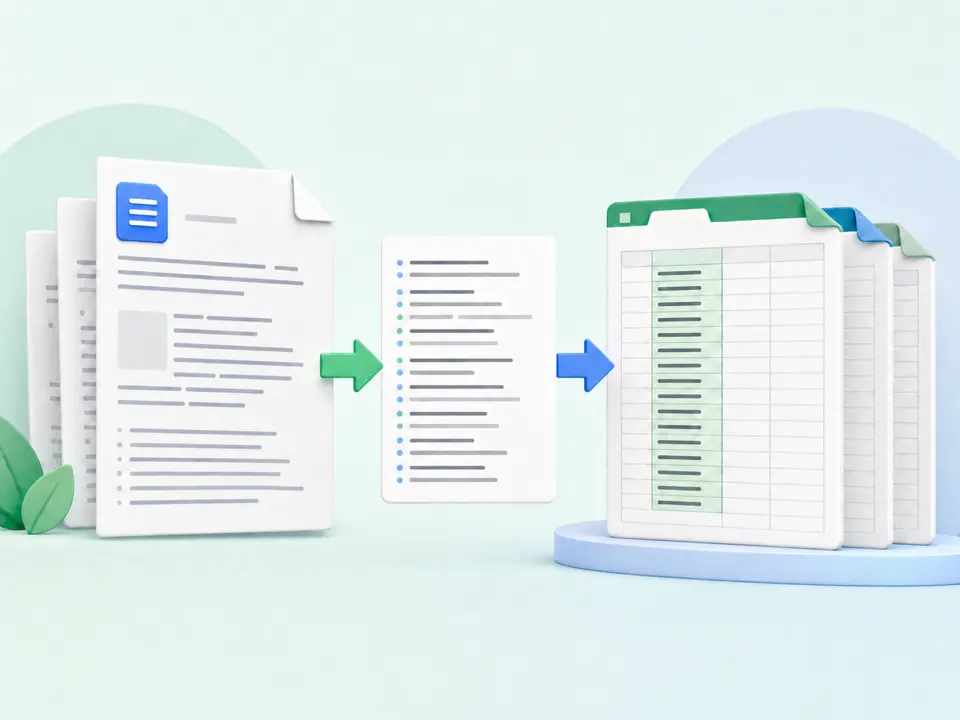
Use PDF to Excel when you want embedded text organized by source page in a workbook. TiPDF extracts visual lines locally, writes every line to column A and creates one worksheet for each PDF page.
The PDF to Excel converter first uses PDF.js to read text fragments from every page. Fragments with nearby vertical coordinates are grouped into lines, sorted from top to bottom and ordered left to right. TiPDF then creates an XLSX workbook with worksheets named Page 1, Page 2 and so on. Every non-empty extracted line is written into a separate row in column A.
This design preserves page grouping and makes text editable, but it does not reconstruct a visual table. A PDF may draw column values at coordinates without storing row, column, merged-cell or header relationships. The extractor cannot reliably decide whether spaces represent separate cells, paragraph indentation or a multi-column article. Consequently, a five-column statement may arrive as one text string per visual line rather than five Excel cells.
Use this PDF to Excel workflow as a structured staging area for text cleanup, filtering and manual table reconstruction. It is not a promise to recover formulas, number formats, charts or original spreadsheet logic. If only prose editing is required, PDF to Word produces page-grouped paragraphs. If the source is a scan, OCR PDF must recognize text first, and any figures used for decisions must be checked against the page image.
PDF to Excel accepts one genuine .pdf and returns one .xlsx. The browser job supports up to 100 MiB and 500 readable pages. Invalid signatures, corrupted content, and renamed non-PDF files are rejected. Protected documents must be unlocked legitimately before extraction.
Each PDF to Excel source page gets a worksheet, including a page with no extracted lines. Non-empty visual lines become rows in column A. The converter does not assign data types, create formulas, freeze a header, infer dates, or split values across columns.
Scanned pages can produce empty sheets because images contain no embedded glyphs. The PDF to Excel converter does not run OCR automatically. Multi-column layouts, rotated text, unusual encodings, and invisible accessibility layers can change reading order or duplicate content. Treat the workbook as evidence that requires validation.
Try selecting several values in a PDF reader. Digitally generated text is a stronger candidate; a photographed or scanned table needs OCR before conversion.
Select or drag the document into the workspace. TiPDF validates the extension, signature, non-empty size, encryption state, and page count locally.
The browser extracts text page by page, assembles nearby fragments into lines, and creates an XLSX with one sheet per page.
Open the workbook beside its source. Check row order, decimal separators, minus signs, dates, account codes, footnotes, and visually similar characters.
Use Text to Columns, formulas, or deliberate editing only after identifying a dependable delimiter. Add headers and data types, preserve the PDF, and document transformations.
PDF to Excel can move one-item-per-line lists into editable rows. Remove repeated headers and normalize entries only after checking the source.
A PDF table to Excel workflow may place an entire visual row in one cell. For invoices or bank statements, split stable delimiters manually and reconcile every total.
Scanned PDF to Excel requires OCR before this converter. Verify account codes, leading zeros, decimal marks, and dates against the page image.
Use PDF to Excel for page-grouped text that needs categorization or annotation. The worksheet name preserves provenance, but quotations and numeric findings still need source verification.
PDF to Excel preserves text strings, not table semantics. Borders, shaded cells, and alignment may contribute no extractable information. One line can contain several visual values, while wrapped text can create multiple rows. Currency symbols, superscripts, and minus signs may be separated or reordered.
Excel can reinterpret strings as dates, scientific notation, or numbers after editing. Keep sensitive identifiers as text and compare totals. For scans, OCR may confuse 0 with O, 1 with l, or decimal points with dust. A searchable PDF helps the PDF to XLSX extraction but does not guarantee accurate financial data.
PDF reading, line extraction and XLSX packaging occur in browser memory on the current device. This handler does not call server conversion, storage, sharing or AI endpoints and does not request upload approval. Normal site assets may still use network connections; the local claim applies specifically to document bytes.
Refreshing clears the active job. The source PDF and downloaded workbook remain under browser and operating-system control, and TiPDF cannot remove local files, backups or later shares. Extracted spreadsheets can make sensitive values easier to copy, so protect the result appropriately.
No. Every extracted visual line goes into column A. You must split and validate fields yourself.
No. It reads embedded text. Run OCR PDF first for scans and verify every critical value.
Page grouping preserves a clear link to the source and avoids blending repeated headers or unrelated tables across pages.
No. PDF pages do not expose the original spreadsheet formulas, cell types, or number formats. The XLSX contains extracted strings.
Only after you unlock the file with the correct password and permission. This page does not bypass encryption.
Upload one approved XLS or XLSX workbook to the configured service and receive its PDF rendering.
Recognize English or Simplified Chinese locally and download searchable PDF plus plain text.
Extract embedded PDF text into a simple editable DOCX organized by source page.
Route one supported file through the appropriate local or approved remote conversion path.
PDF to Excel capability copy was checked against the PDF.js line extractor and ExcelJS workbook builder on July 18, 2026. Tests verify a valid XLSX containing source text; table reconstruction, formulas, and automatic OCR are excluded.