Mixed scanner output
Correct landscape sheets that a scanner saved sideways. The tool will not identify those sheets automatically, so record the range first.
Drop files here
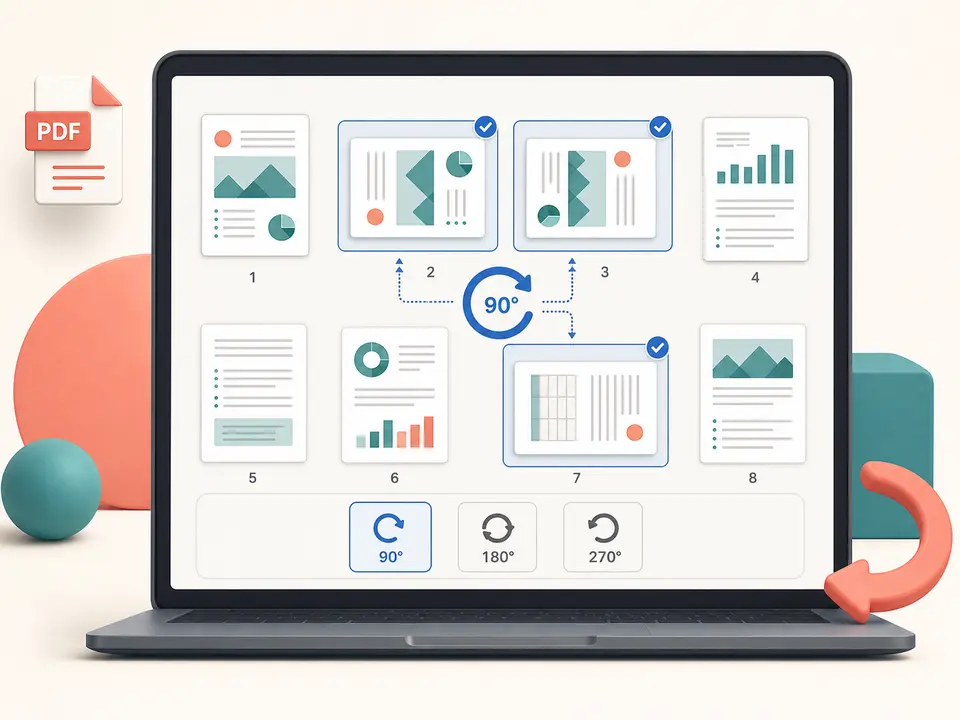
Rotate PDF pages when their saved viewing orientation is wrong. TiPDF applies a 90, 180 or 270 degree clockwise rotation to all pages or a validated range and writes a new file locally.
The Rotate PDF tool changes page rotation metadata rather than rendering the page as an image. For every selected page, TiPDF reads its current angle, adds the chosen 90, 180 or 270 degrees and normalizes the result within a full turn. A page already rotated 90 degrees becomes 180 degrees after another 90-degree choice.
Rotate PDF is a page-level orientation change. It does not rotate an individual photograph, straighten a skewed scan, detect which pages are sideways or rewrite text direction. Content, fonts and vector objects remain part of the PDF page while a compatible viewer uses the new saved angle for display and printing.
The Rotate PDF result is a separate updated file. Rotate PDF pages only after checking the source's current orientation, because applying the same setting repeatedly accumulates. Keep the original until every selected page, link and printed edge has been reviewed.
Choose one genuine .pdf within the 100 MiB local file limit and no more than 500 pages for Rotate PDF. TiPDF validates the extension, PDF signature and parser readability. An encrypted document must be unlocked with the known password and authorization before its page objects can be changed.
The page field accepts all, individual one-based numbers and comma-separated ranges such as 1,3,5-8. Values outside the document are rejected. Duplicate selections are normalized by the shared range parser, and leaving the default all targets every page. Use the viewer's file page count rather than printed numbers that may restart in appendices.
Available choices are 90 degrees clockwise, 180 degrees and 270 degrees clockwise. There is no arbitrary angle, counterclockwise label, automatic orientation detector or per-page mixture in one run. The output keeps PDF format and gains an updated filename suffix; file size may change when objects are saved again.
Open the source in a reader and note file page numbers plus their current displayed direction. Printed labels may not match viewer numbering.
Use 90 for a quarter turn clockwise, 180 for upside-down pages or 270 for the equivalent of a quarter turn counterclockwise.
Select all or provide numbers and ranges. Split the task into separate reviewed runs if different pages need different angles.
The browser updates each selected page's existing rotation and saves a separate PDF without calling conversion, storage or AI services.
Check every changed page at normal and print preview, confirm untouched pages stayed oriented correctly and preserve the source until approved.
Correct landscape sheets that a scanner saved sideways. The tool will not identify those sheets automatically, so record the range first.
Apply 180 degrees to selected attachment pages while leaving the main report unchanged.
Rotate PDF pages exported in the wrong orientation, then check cropping and print behavior in the destination viewer.
Create an easier-to-read copy without rasterizing page content. Preserve the untouched original and record that orientation metadata changed.
Because the handler changes rotation metadata, it does not intentionally resample photographs or convert vectors and text into pixels. Visual sharpness normally remains unchanged. A newly serialized PDF can still differ in byte size and internal object arrangement.
Rotate PDF output must be tested in the reader and printer used by recipients. An unusual viewer, existing crop box, annotation coordinates, form widgets, links, signatures or accessibility structure may behave differently after a rewrite. Certificate signatures covering the original bytes should not be assumed valid. The operation also cannot fix skew inside a scanned image.
The selected PDF is parsed, modified and saved in browser memory on the current device. This handler does not upload document bytes to TiPDF conversion, storage, sharing or AI endpoints and does not ask for remote-processing approval. Normal website assets may still use network connections.
Refreshing clears the active job, while the source and downloaded result remain wherever the operating system stores them. TiPDF cannot remove local copies, backups or later shares. Use appropriate device and folder controls for sensitive documents.
Yes. Enter that page number and choose one of the three saved angles.
Yes. This local workflow has no checkout or account requirement, subject to the file and page limits.
Yes. The result is a separate rewritten PDF with updated rotation metadata.
Use separate reviewed runs because one angle applies to the selected range in each run.
A 270-degree clockwise turn has the same final orientation as 90 degrees counterclockwise.
No. It changes page orientation in quarter turns and does not deskew pixels.
It does not intentionally rasterize pages, but always inspect document-level features after saving.
Use Organize PDF for one complete sequence and a single reordered download.
Use Crop PDF to inset all or selected page boxes by one uniform point margin locally.
Delete a validated set of complete pages locally while keeping at least one page in the PDF.
Combine complete PDF files in a deliberate sequence without rendering their pages as images.
Rotate PDF capability copy was verified on July 18, 2026 against the page-range parser and local PDF handler that adds 90, 180 or 270 degrees to existing rotation metadata. Verification includes one-page, mixed-range and all-page selections, accumulation on a page with an existing angle, local artifact creation and rejection of invalid ranges. The saved page count is compared with the source before the result is reported. A rotate PDF result should still be opened in a second viewer before distribution. It excludes arbitrary angles, automatic orientation detection, image deskewing and guarantees about signatures or advanced document features.