Correcting scan order
Use Organize PDF after identifying misplaced backs, inserts or separator sheets; the tool will not detect fronts and backs automatically.
Drop files here
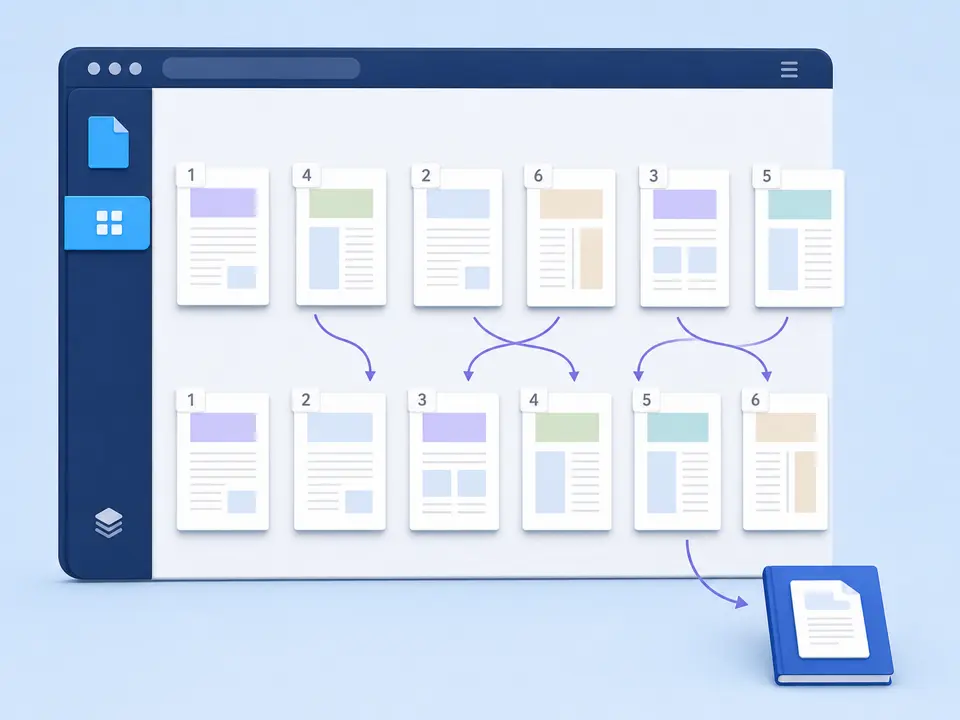
Organize PDF pages when the document is complete but its sequence is wrong. TiPDF validates a list containing every page exactly once, copies those pages locally in the requested order and creates one reordered PDF.
The Organize PDF tool performs one narrowly defined operation: it rebuilds a document using a complete page sequence that you type. For a four-page source, an order such as 3,1,4,2 puts the third page first, followed by the first, fourth and second pages. The Organize PDF result remains one four-page PDF. This is different from Split PDF, which creates separate files, and Extract PDF Pages, which intentionally creates a smaller selection.
Before TiPDF will reorder PDF pages, the Organize PDF sequence must include every source page exactly once. Missing numbers, repeated numbers, numbers outside the document and incomplete ranges are rejected. That strict check prevents an accidental omission from looking like a successful organization job. Leaving the field empty is also rejected even though the interface description explains that the original order would otherwise be unchanged; a new explicit order is required by the current handler.
The Organize PDF browser handler creates an empty PDF, copies source pages in the validated sequence and saves the result with an organized suffix. It does not render each page as a screenshot, run OCR, sort pages by their visible headings or infer the correct sequence. To organize PDF content safely, decide the sequence yourself by looking at thumbnails, page numbers and section boundaries in a reader before entering it.
Organize PDF accepts one genuine .pdf. Local validation limits a file to 100 MiB and reads at most 500 pages. The file extension and PDF signature must agree, and the parser must be able to load the document. Encrypted content requires the correct password and permission through the unlock workflow; this page does not bypass protection.
Enter Organize PDF page numbers separated by commas, using the one-based page count shown by a PDF reader. Ranges are accepted by the shared parser, so 4-6,1-3 describes pages 4,5,6,1,2,3. Every page from 1 through the actual page count must appear once and only once. A sequence cannot duplicate a cover for convenience, omit blanks, or insert new pages. Use the relevant extraction, deletion or merge tool for those different intents.
The output is one .pdf containing the same number of pages as the source. The filename gains an organized suffix. Reordering does not promise a smaller file, and the tool provides no compression setting. If size is also a problem, download and inspect the reordered file first, then use Compress PDF as a separate, observable step.
Open the source in a reader and identify the file page numbers. Printed numbers can restart inside appendices or differ from the viewer count, so make a page-to-section note when the document is complex.
Write every number exactly once in the desired order. For a long file, divide the plan into verified sections and then join them. Count the entries before processing.
Choose or drag one file into the workspace. Organize PDF checks the extension, file signature, byte limit and readable page count before processing.
Paste the comma-separated order or supported ranges. TiPDF rejects duplicates, omissions and out-of-range values rather than silently rearranging an incomplete list.
Open Organize PDF output, inspect transitions between sections, confirm the first and last pages and compare the total page count with the source. Keep the original until the new sequence has been approved.
Use Organize PDF after identifying misplaced backs, inserts or separator sheets; the tool will not detect fronts and backs automatically.
Organize PDF sections by moving a completed executive summary ahead of supporting material while retaining every page. Check internal references after the order changes because written phrases such as “see the next page” are not rewritten.
An export may contain all slides but use an outdated sequence. Reorder PDF pages when visual pages are final and no source presentation is available, then verify slide numbers embedded in the artwork.
Put cover sheets, indexes and appendices into an agreed sequence without deleting records. Preserve the untouched original as provenance and record why the derivative was reorganized.
TiPDF copies PDF page objects, so text, vector graphics, photographs, dimensions, crop boxes and rotations normally retain their page representation. When you organize PDF pages, the operation does not intentionally resample images or apply lossy compression. A newly saved file can still have a different byte size because PDF objects and shared resources are serialized again.
Rearrange PDF pages carefully because a new order can change meaning even when pixels remain identical. Bookmarks, destinations, page labels, links, form calculations and reading order may refer to the old structure. Certificate signatures that covered the original bytes must not be assumed valid on the rewritten file. Accessibility tags and logical document structure also need checking. Use a PDF validator or specialist editor when preservation of those features is a contractual requirement.
The selected PDF is parsed, copied and saved in browser memory on the current device. This local handler does not send document bytes to the server conversion, storage, sharing or AI services, and it does not ask for remote-upload approval. The website may still fetch normal application resources; the local statement applies specifically to the PDF job.
Closing or refreshing the page ends the in-memory session, but any downloaded result remains in the device's downloads or chosen folder. TiPDF cannot erase local copies or prevent later sharing. When page order contains sensitive records, verify the final sequence before attaching the file and retain access controls appropriate to the destination.
Yes. This local workflow has no account or checkout requirement, subject to file and page limits.
No. The complete sequence must include every source page exactly once.
No. TiPDF does not analyze visible content or infer the correct order; you provide the sequence.
No. The Organize PDF handler requires every page exactly once. Use Delete Pages or Extract PDF Pages when the intended result contains fewer pages.
No. Duplicate values fail validation. To duplicate or insert pages, create the required source documents and use a workflow designed for merging.
Not necessarily. Page resources are saved again, and this operation has no quality or compression control. Use a separate compressor only after checking the organized result.
Do not assume so. Page content is copied, but document-level navigation, tags, forms and certificate signatures may need specialist verification after the file is rewritten.
Use Rotate PDF for one saved quarter-turn angle without rasterizing page content.
Delete a validated set of complete pages locally while keeping at least one page in the PDF.
Copy a reviewed page selection into one new PDF while preserving the requested order.
Combine complete PDF files in a deliberate sequence without rendering their pages as images.
Organize PDF capability copy was verified on July 18, 2026 against the organize-pdf registry, ordered page-range parser and local PDF copying handler. Validation covers a complete unique sequence and one rewritten artifact, without claiming semantic sorting or document-feature preservation.